Love CoffeeShop Freebies?

Image and video hosting by TinyPic
Hi! My name is Rita and I am the blogger behind CoffeeShop and a stay-at-home, home-schooling Mom to two naughty but adorable little boys (Duke is 7 and Imp is 4), wife to my high school sweetheart, and passionate about all things photography.

If you are visiting for the first time, welcome! Please read all about my CoffeeShop blog here. Everything on my blog is 100% free!

If you love using my free CoffeeShop creations and would like to make a donation to Rita the self-professed photo-editing photography geek of CoffeeShop, please follow this link! This blog is possible because of your generous support.

Search the CoffeeShop for all of my free goodies!!!

Custom Search

Much Ado Over Nothing, or Complete Mayhem?

>> Tuesday, March 31, 2009

With all of this talk about the Conficker virus I thought this might be an important post. I am a bit anal about backing up my original image RAW files. Those are my photo "negatives" and they document my entire children's lives. So I have them on my main computer, backed up on two external hard drives (one that is off site in case the house burns down), and on DVDs. I do the DVDs because I can store them safely off site and easily add a new DVD rather than having to get my drive back and saving the new images. I spend so much time backing up that I am one year behind in processing these photos!

So for external drives, I love Iomega drives. There are other perfectly good brands out there like Western Digital, but lately I have been buying Iomega and they have worked great. This is the one I just bought:


Now I wish I had gone with an even larger one, but even this one has more than enough space to store all of my photos with plenty of room left over, for now.

If I had "real" fast internet (I have satellite which is fast compared to 28 K dial-up) I would also use an off site backup company. My husband uses MozyPro Business Online Backup at work and loves it. For home use Mozy has Mozy Online Backup - 2GB Free and also Mozy Unlimited Backup - $4.95/Month . If you buy a year you get one month free, and if you purchase two years you get three months free! Or just buy it month-to-month. Right now you can get 10% off if you click on one of these links and type the code APRIL into the referral box at signup. I always love a discount!


Remember, you can't use Mozy if you have satellite or dial-up (unless you have incredible patience or only tiny files).

If you are on a budget and just want a cheap easy route, burn DVDs. Make one copy to store in your house, and one copy to store off site. I have used all brands and they all seem to work. I realize DVDs won't last forever, but store them in a hard CD case safely away from your kids and pets and they are a decent backup for years and years. And I don't think computer terrorists can fry them like they can hard drives (this is not based on any actual information, just from my reading too much sci fi!).


Someone suggested the best back-up plan for your images in the comment section. Make photo prints! Wow, that is the best advice I have seen. Not only do they last a few generations if properly stored, you will enjoy them much more as actual photos rather than image files on your computer. Brilliant suggestion!

Just make sure to back up your important files and photos. You never know what can happen and it is better to be safe than sorry... I really hope this Conflicker virus ends up being a big ado over nothing.


♥ Read more!

CoffeeShop Cropping Tip!

If you use my storyboard actions that automatically crop your image, there might be times you can't see the crop bars and so you aren't able to drag them to fit your image. This is because your image is smaller in pixel size than the image I used to write the action. Well, don't be frustrated! There is a simple solution in both Photoshop and Photoshop Elements. This trick also works when you are not using my actions.

Just press Ctrl-0 (that is zero, not ohhh). It is really that easy! Your image will shrink and the gray background will grow and you will be able to see the crop lines so you can drag them to fit. Please see the sample below:


This trick has saved me so much frustration and I wanted to share it with you.


♥ Read more!

CoffeeShop Eye Bright PS/PSE Action!

>> Sunday, March 29, 2009


CoffeeShop Eye Bright is an action that runs in both Photoshop and Photoshop Elements. It brightens and defines eyes and removes redness from the whites (due to stress or allergies or late night coffee drinking!). If you love the eye enhancements in CoffeeShop PowderRoom 2 or Perfect Portrait, but don't need the skin softening/teeth whitening step on every image, then this is the action for you. And like all CoffeeShop actions, the enhancements are completely adjustable and the effects can be as subtle or dramatic as you wish.

Here is a complete tutorial with screenshots!


If you just need a little reminder, here are some simple notes. Eye Define layer: Select black layer mask and paint over eyes and lashes with a soft white brush set to 100% opacity. Eye Brighten layer: Use a soft low opacity white brush to paint over the iris, and a soft low opacity black brush to paint over the pupil and black around the iris. Whites Whiten layer: Click to select the black layer mask and paint over the eye whites with a soft low opacity white brush to remove redness and whiten the whites. You can adjust each layer opacity if the effects are too much.

Download the free CoffeeShop Eye Bright PS/PSE action HERE or HERE!

Want all of my favorite CoffeeShop Actions or Design Elements in one simple download AND help support this blog? Just click here for my action pack or here for a download of some of my most popular design elements, storyboards, and textures. For complete info on installing all of my actions, click here.


♥ Read more!

CoffeeShop Flower Patterns

>> Thursday, March 26, 2009


When I made the CoffeeShop Distressed Flower Cards I decided to turn the flowers into Photoshop patterns. These patterns work in all newer versions of Photoshop and Photoshop Elements, just load them with Edit, Preset Manager. To fill something with a pattern, just select your paint bucket tool (or Edit, Fill, Pattern) and make sure Pattern is selected, select the pattern you wish to load, and then "pour" the pattern onto your background. These are seamless patterns so you can use them anywhere. They work great for texture backgrounds, cards, blogs, etc. You can easily change the colors by using hue/saturation and selecting Colorize.


Download the CoffeeShop Flower Patterns HERE or HERE!


♥ Read more!

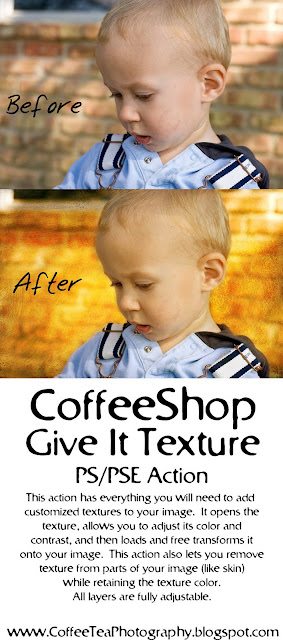
CoffeeShop Give it Texture PS/PSE Action!

>> Tuesday, March 24, 2009

Click on image to see it bigger!

If you are like me and enjoy using textures on your images, you will love this action. This action opens and allows you to enhance the color and contrast of a texture, places it on your image, and also makes it possible for you to easily (but non destructively) erase the texture from areas in your image while retaining the texture color.

Open your image and then start CoffeeShop Give it Texture. It first prompts you[...]


♥ Read more!

CoffeeShop Bracket Frames Pack 2!

>> Sunday, March 22, 2009

Click on the image to see them larger!


Here is my second set of bracket frames (you can find the first set here). People have asked me what you do with these. Just open them up as any other image file in Photoshop or Photoshop Elements (or your editing program of choice). You can use them around your images on storyboards, greeting cards, blog headers, etc. You can also add patterns or colors in the middle instead of images. They work great in logos and business cards.

I have another set I am working on that are very ornate and perfect for weddings!

Download the CoffeeShop Bracket Frames Pack 2 HERE!


♥ Read more!

Now for some photography...

>> Saturday, March 21, 2009

Barn Flower


Finally, some photography. Believe it or not, I actually do take photos and not just write actions. If I could only catch up processing all of my thousands of images...

We have our own personal bluebonnet field outside our kitchen window (in the front side yard) and I was taking some photos of the gorgeous bluebonnets when I noticed this little weed. I stopped for a moment and snapped its photo and was happy I did. The bluebonnets are more spectacular, but this humble weed is beautiful in its own right. I used my favorite walk-around lens EVER, my Canon EF 28-135mm f/3.5-5.6 IS USM Standard Zoom Lens for Canon SLR Cameras (if you don't have this lens, run and get it, it is great for everything from landscape to flowers to portraits!). I believe my aperture was pretty much wide open when I shot this, and that background is not photoshopped but the real deal. It looks like a painting or texture, but it is 100% from this lens! I processed this using my newest action set I am working on (and will be releasing soon). This action set is perfect for those flower/landscape images and I think you will love it.

And I also wanted to mention that my spectacular bluebonnets drive my poor husband CRAZY! They are in full glory for about a week (and get trampled by neighbors sneaking in to photograph their children with the blooms), but are a weed pit about a month before they bloom and 2 months after they bloom (to make sure they completely seed). My husband takes pride in our yard and having to look out at a field of questionable weeds for months is pretty upsetting to him. As I know he faithfully reads my blog (he does!), I wanted to thank him for being so patient with my flowers. And also thank him for not mowing them down as he threatens every spring during every breakfast while we are looking over the seeding bluebonnets being taken over by foot tall weeds! You are a true gentleman my dear.

Oh, I also need to catch you up on my chickens. I had zero, then 5, and now 31. It is an interesting story and one that needs to be told, on another day of course. And I have so many things coming your way. My texture loading action, an action to brighten eyes, the action I used above, and some B&W actions that will finally work in Photoshop Elements! Plus more storyboards, some patterns, brushes, frames, and whatever else I design late at night when the boys are asleep and my husband is resting his eyes ;-) . Oh, and I will be posting some bluebonnet photos very soon!


♥ Read more!

CoffeeShop 20x10 Storyboard PS/PSE Action & Template Redo!

>> Friday, March 20, 2009


♥ Read more!

CoffeeShop Polaroid Blog Header!

>> Wednesday, March 18, 2009


If you notice I have a tendency to change my blog header quite regularly. You might be shocked to find out I design and maintain my own blog (hee hee, OK it is pretty obvious...), even though I have yet to learn HTML. Thank you Blogger for being idiot-proof! I like to do it myself because I get tired of looking at the same header and if I pay someone to do a great job I won't want to change it. So this morning while the boys were watching their farm tractor video I made this new header which you can download below. The downloadable one does not include the above background, text, or image, but it is very easy to customize.

To custimize the CoffeeShop Polaroid Blog Header:

1. Open the header in Photoshop or Photoshop Elements like any other image.

2. Click on the bottom layer (Header Background.) If you want to make it another color, just Edit, Fill with your color of choice. If you want to add a pattern or texture (as I did above, you can find that texture HERE), just open the texture and select your move tool and drag it above the Header Background layer. Turn off or delete the Header Background layer and then Ctrl-T (free transform) the texture layer to fit your header. Click "constrain proportions" and either click and drag or change the W or H and move the texture around until it looks nice. If you can't see the drag bars in Photoshop, just Ctrl-0 (that is a zero) and you will be able to see them.

3. Add your image. As you can tell I used just one in this header. Open the image of your choice and move it on your header, just above the Clipping Mask layer. Then click on your image layer to select it, and Ctrl-G to group it with the Clipping Mask layer. This will fill the polaroid template with your image and restore your background. Then Ctrl-T the image layer to fit. Make sure to move it around and change the size to get the best fit.

4. Select the text and change the font to taste. If you don't want the text just turn off the little eye icons or drag the text layers in the trash.

5. Flatten and save! It is 980x400 so you might have to "shrink to fit" in your blog.

Download the CoffeeShop Polaroid Blog Header HERE or HERE!


♥ Read more!

Cool Photography Books!

>> Monday, March 16, 2009

First, a note on CoffeeShop Storyboard Template actions. I realize that some PSE users would prefer that they did not flatten the final image at the end, so I am writing a version that does not do that. Also, I am making a set that will round the corners and/or add a border (if you want to do that). All of these will be posted very soon on my blog, so keep an eye out for them!

Now, onto actual photography! I know many of you readers are parents who are just starting out in the world of photography, mainly because you have the most amazingly beautiful model living right under your nose. It is impossible to take too many photos of your baby or child (my husband disagrees, but only because he has to keep on buying external hard drives to hold all of my images of our children). However, you might find that you take picture after picture and you are just not happy with your results. You look at people's flickr photostreams and can't figure out what YOU are doing wrong. Learning how to take a great image is more important than learning how to edit. Anyone can edit a spectacular photo, but not everyone can take a spectacular photo. The capture is the most important part of photography.

When my sister had her little girl (the first little baby in my family) I was completely confused how to photograph that little adorable creature that just laid there, spitting up and little bald head flopping to the side. My pictures were often those lovely "deer in the headlight" shots, or so out of focus that my niece could have been my pet cat. I had quite a few photos looking up her tiny nose, or her surrounded by so many toys that you could not even tell there was a baby in there. "Why did you take a picture of the couch, oh, there is a baby there!". So I went online and I purchased this book hoping to learn something, and it made all of the difference in the world:


How to Photograph Your Baby is an amazing book for the beginner photographer. It is a quick and easy read and not full of confusing technical jargon. This book simply shows you how to take stunning images of your baby or child (or anyone for that matter). If you are just starting out (or very unsatisfied with your images), this is a wonderful simple book that should be on your reading list. One evening with this book and you will start loving your photographs. And you don't have to have fancy equipment either. Just a camera and a little one!

There are many other books out there that can improve your photos of children and babies. Here are a few:


If you are lucky your library might have some of these books. But if they don't and you buy them, they are great to pass on to new parents so they too can improve their photography. I think the best baby gift to a new parent would be a book on how to photograph their baby and a gift certificate to your favorite photo lab. You have only one chance to capture those images. And no professional photographer can take better photos than you, because you are there all of the time and have the unique opportunity to capture the most amazing moments in that baby's life.


♥ Read more!

CoffeeShop Creamy Chocolate B&W PS/PSE Action!

>> Saturday, March 14, 2009


Here is my latest new action, CoffeeShop Creamy Chocolate B&W. This action runs in both Photoshop and Photoshop Elements and is a personal favorite of mine. It not only adds a hint of chocolate color to your image, but it also makes everything slightly softened. All layers are completely adjustable with layer masks, including the Creamy soft layer (so that you can remove the softness from eyes or other parts of the image). This action is absolutely great for portraits.

You can download the CoffeeShop Creamy Chocolate B&W PS/PSE Action HERE or HERE!

Want all of my favorite CoffeeShop Actions or Design Elements in one simple download AND help support this blog? Just click here for my action pack or here for a download of some of my most popular design elements, storyboards, and textures. For complete info on installing all of my actions, click here.


♥ Read more!

CoffeeShop 20x10 Storyboard PS/PSE Action Set 1!

>> Wednesday, March 11, 2009


♥ Read more!

CoffeeShop 5x7 Scalloped Border Set!

>> Monday, March 9, 2009


♥ Read more!

CoffeeShop Distressed Flower 5x7 Card Templates!

>> Sunday, March 8, 2009


♥ Read more!

Photography Equipment Must Have!

>> Thursday, March 5, 2009

You know, I am not just a computer geek but I also actually like to be behind the camera.

So how would I live without my:


This little thingy is amazing! If you are like me you have thousands of pictures of your family yet you are in only a fraction of them because EVERYONE asks you to be the photographer because you are the only one who can actually work a camera. Well, a few years ago I invested in my little Canon Wireless Remote Control RC1 for Digital Rebel and it was the cheapest most necessary accessory for my camera ever!

It has two settings. You can have it take the picture in 2 seconds after pushing the little button on the remote, or instantly. It works 16 feet away and is perfect to take those family photos when you have no one there to hold the camera. It is also great for long exposures since you don't have to touch the camera and risk shaking it. This is also great for those self-portraits (when you have actually brushed your hair and are wearing something other than your sweats).

For you Nikon users out there, you can have one too!


And I don't want to forget those Pentax users out there too!


Seriously, if you don't have one of these little guys, get one now. Forget setting your timer on your camera because you know the instant it goes off you will be knocking your son's finger out of his nose or yelling at the cat to not urinate in your herb garden. This little remote will give you peace of mind!!!


♥ Read more!

CoffeeShop Texture Pack 4!

>> Tuesday, March 3, 2009


I am on a roll and made another CoffeeShop Texture Pack to share with you. These things are an addiction. As you probably have noticed, I have been using many of the freebies from Pixels & IceCream in my texture packs. I usually don't buy digital editing stuff because I have more fun trying to learn how to create it myself, yet I fell in love with Jennifer's Damask Pattern Set and had to purchase it. Not to mention I owe her big time for all of her amazing freebies I have downloaded and used on this blog. The lovely graphic design you see in these textures came from that set. This texture set was very fun to make, and I hope you can use it!
Just open them in Photoshop or Photoshop Elements like any other image. For suggestions and tutorials on using textures, click HERE.


Click on the image to download the CoffeeShop Texture Pack 4, or click HERE! If those links don't work, then please click HERE.


♥ Read more!

Upcoming to the CoffeeShop!

>> Monday, March 2, 2009

Just wanted to let you know that I am releasing another texture pack tomorrow (one of my favorites) and later on this week I will be posting my first set of 20x10 storyboard template actions. These actions will run in both Photoshop and Photoshop Elements and they build and load a 20x10 storyboard template. This is the first set of a series.


♥ Read more!
