


Friday, December 31
{Friday Photo Bliss}
Inspired by the SouleMama blog's {this moment}, I am posting one image every Friday, taken that week, that really makes me happy. If you end up doing the same I would love to see your photo linked in my comments!
Wednesday, December 29
CoffeeShop Tutorial: Making your own custom cutouts/clipping masks!

I was horrified reading all of your comments on my last post about your own tooth injuries. However, it did make me realize we are not alone. Imp is doing great. Most of the swelling is gone and his skin on top of his tooth is slowly starting to come back. One of his front teeth is pushed a bit backwards now, but so far so good. I still get a sick feeling in the pit of my stomach when he smiles at me... He has the cutest smile and I am glad it is starting to return to normal. Poor little sweet guy!
I have been posting quite a few cutouts/clipping masks for scrapbooking and digital design and I have had many readers ask me how I create them. Often I use brushes and shapes, but you can also use found objects to make them and it is actually pretty easy if you are familiar with Photoshop or Photoshop Elements. So why don't I show you one way to make your own custom cutouts/clipping masks/digital designs.
You can make a cutout of so many different things. In this example I picked up a leaf from outside and photographed it on white paper (notice the poor lighting conditions). Once you realize how easy it is to make these cutouts you will see designs you want to create everywhere.

Note: Click on images to see them bigger! I want to select the leaf so I need to separate the background. In this case I added a levels adjustment layer and moved the highlight and midtone slide to the left until my white background was very white.

Then I clicked on my background layer and used the magic wand tool to select the white area.

Then I selected the leaf or inverse (shft,ctrl, I)

I made a new blank layer on top of the background but below the levels adjustment layer. Then I clicked on Select, Refine Edge, and put in the settings you see below. You can adjust this to taste, this is just a starting point. Photoshop Elements also has Refine Edge. This is a great way to smooth out any rough areas on your cutout.
Then Edit, Fill with white (or any color) the selection on the new layer.

Ctrl-D to remove the selection "ants" and then delete the levels and background layer. You should only have one layer, your new cutout.

Now you can add a colored background if you want. Just add a color fill adjustment layer on the bottom. I also added a dropshadow effect to the leaf cutout to make it stand out.

If you want to add color to the leaf, add a color fill layer on top and group it to the leaf cutout.

It is easy to add a texture or digital design to the leaf. Open the design of your choice and then group it to the leaf layer. Ctrl-T (free transform) to fit.

Adding an image is as easy as adding a texture/digital paper. Just drag it on top and group it with the leaf cutout.

You can create designs with your cutouts. After you add a design delete the background color and Merge Down (Ctrl-E).Don't flatten because your cutout will not have a transparent background. Drag your merged cutout to a new document and Ctrl-T it to taste. You can Ctrl-J to make copies of the cutout on that document. In this case I made three copies of the leaf.

You can also make clipping mask groups using your cutouts. Here I dropped and dragged three leaf cutouts and Ctrl-T them until they looked like the image below. Then I clicked to select all three leaves and Merged them.

Next I added an image and grouped it with the merged leaf clipping mask. Then I added a color fill layer on bottom so I could use the eye dropper to select a color in the image to use as a background.

I hope this tutorial will encourage you to go out and make your own clipping masks/cutouts/design elements. Just walk through Hobby Lobby or your backyard and you will be inspired!
Do you want to download my favorite CoffeeShop PSE/Photoshop Actions and Lightroom Presets or Design Elements in one convenient zipped file AND help support this blog? Just click here for my action pack or here for a download of some of my most popular design elements, storyboards, and textures.
For complete info on installing all of my actions, click here.
Monday, December 27
When the worst case minor injury happens and you realize you both survived...

But one of my biggest fears are tooth injuries.
Wednesday, December 22
CoffeeShop CutOuts 5!

I am going to take a small blogging break for Christmas (well, maybe!), but I wanted to give you one final freebie that would make a great little gift tag.
For free download today I am giving you the CoffeeShop CutOuts 5. This download includes two different cutout or clipping mask designs, one with a border. I included both a .png with a transparent background and a layered .psd file to open in Photoshop or PS Elements. You can adjust the layered .psd by changing colors and adding textures and images. For some tips and tricks read this post.
You can find all of my cutouts and free digital designs here. I will be adding more after the holidays. It has become a bit of an addiction.
Download the free CoffeeShop CutOuts 5 here.
I wish everyone a very Merry Christmas and a Happy Holidays! Thank you for making this blog possible.
Do you want to download my favorite CoffeeShop PSE/Photoshop Actions and Lightroom Presets or Design Elements in one convenient zipped file AND help support this blog? Just click here for my action pack or here for a download of some of my most popular design elements, storyboards, and textures.
For complete info on installing all of my actions, click here.
Sunday, December 19
CoffeeShop "Baking with Mom" Ethereal Texture Set!

I love textures and I love my readers. So I decided to give you a little early Christmas gift and create a new texture set (you can see my other textures here). Right now soft tinted "airy" textures seem to be the rage so I created my own set, CoffeeShop "Baking with Mom" Ethereal Textures. I will be posting a tutorial on how to create these textures later this week. They are actually very easy and fun to make.
This set includes 20 high-resolution .jpg files that you open like any other image. These are not actions! Like everything I post on this blog, these can be used personally or commercially, just don't claim them as your own and/or sell them "as is".
I posted some images edited with the textures below with the recipes (click on them to see larger versions). The after images only have the textures applied, no other editing was done on them. As you can see, these simple textures can really enhance your images. I have many tutorials on this page if you are new to the amazing world of textures.
In a nutshell; open your image in Photoshop or PS Elements, drop the texture on top and free transform it to fit (Ctrl-T), and then change the blending mode of the texture layer until you get a nice effect. I usually use multiply, overlay or soft light. And make use of layer masks to remove texture from parts of your image if needed. Here is a tutorial that will get you started.


Download the free CoffeeShop "Baking with Mom" Ethereal texture set.
Do you want to download my favorite CoffeeShop PSE/Photoshop Actions and Lightroom Presets or Design Elements in one convenient zipped file AND help support this blog? Just click here for my action pack or here for a download of some of my most popular design elements, storyboards, and textures.
For complete info on installing all of my actions, click here.
Friday, December 17
{Friday Photo Bliss}
Inspired by the SouleMama blog's {this moment}, I am posting one image every Friday, taken that week, that really makes me happy. If you end up doing the same I would love to see your photo linked in my comments!
I have two today. :-)


I have two today. :-)
Thursday, December 16
CoffeeShop Grainy B&W Action Kit and UnWrapped Tutorial

Our heat is still not working (luckily it is warm) and we found out that the A/C & heater unit for the back part of the house (bedrooms) is almost 20 years old and a huge fire hazard. Some wires melted and fused and blew out a transformer. No wonder I smelled something burning; just thankful it wasn't the house or our hair...
So we get to spend our Christmas money this year replacing our heater and A/C. I remember my father telling us "not this month, we have a lot of bills" almost everytime we asked for something that cost money when we were kids. As an adult with a tight budget I understand where he was coming from. There are always a lot of bills!
So to help everyone out this month I am posting another freebie.
Since I am nostalgic for grainy B&W film, I decided to put together a little kit to fake a similar effect. This kit includes an action for Photoshop or Photoshop Elements, a Grainy texture that you can use if you don't want to use the action or you want a more "arty" grain, a vintage layered frame with a clipping mask (download my free action Group-It to quickly load images), and a step-by-step tutorial on editing without the action.
You can also a similar look by shooting at the highest ISO your camera allows, making sure the exposure is a bit dark, then opening it in Photoshop or PSE and bringing up the midtones so you increase the noise.

You will have 5 layers after running the action. Turn on the Soften layer and adjust the opacity if you want your image to have the soft focus of older photos. Adjust the Grain layer's opacity to taste, change the blending mode to overlay for even more noise. Lower the opacity of the B&W conversion layer if you want a hint of color. And adjust the levels layer for perfect contrast (this action allows you to adjust levels while it is running).
CoffeeShop Grainy B&W Action UnWrapped Tutorial!
1. Open your image.
2. If you are tired of super-sharp digital images and want some old-fashioned softness, make a copy of your background and Filter, Blur, Gaussian blur, set to 10, and then adjust the opacity of that layer to taste.
3. Two ways to add grain:
Photoshop: Add a new blank layer and fill it with 50% gray. Edit, Fill, 50% Gray. Then add grain. Filter, Texture, Grain, Intensity 100, Contrast 70, type of grain regular. Desaturate this layer (shift,ctrl,U) and put it in soft light or overlay blending mode and adjust the opacity.
Texture: Open the CoffeeShop Grainy B&W texture and drag it on top of the layers. Ctrl-T to fit, then put the texture layer in soft light or overlay blending mode and adjust the opacity. This gives a more "arty" texture than the first version.
4. Add a black to white gradient map adjustment layer on top to convert the image to B&W.
5. Add a levels adjustment layer and adjust the shadows, midtones, and highlight sliders to taste.
Download the free CoffeeShop Grainy B&W Action Kit for Photoshop/Photoshop Elements. You can also download it here!
You might have noticed that I am trying to organize my menutabs and feebies so you can actually find things. I now have a tab for textures/digital papers and scrapbooking/digital design elements which I will keep updated.
I have a huge free beautiful texture set (and tutorial) coming out this weekend, so stay tuned. And thank you so much for reading my blog and making such generous donations. You are the reason everything is free and I get to have so much fun blogging.
Do you want to download my favorite CoffeeShop PSE/Photoshop Actions and Lightroom Presets or Design Elements in one convenient zipped file AND help support this blog? Just click here for my action pack or here for a download of some of my most popular design elements, storyboards, and textures.
For complete info on installing all of my actions, click here.
Wednesday, December 15
B&W Fun: When Noise Becomes Grain

Lately I have really missed the joy of shooting with B&W film. I still have my Canon AE-1
Monday, December 13
CoffeeShop CutOuts 4!

Would you believe our heater just died? The other day I smelled something burning in the back of the house, but I thought it was the boys playing with the bathroom heater. When you turn it on the first time in the winter it always smells. It hasn't been very cold the last days so I had the heater turned off and didn't realize there was a problem.
However, yesterday the night temperature was predicted to be in the mid-20's, which is cold for this part of Texas. I went to turn on the heat and nothing happened. Last night we made a run to Target and bought everyone an electric blanket (they were on sale, excellent) and we were good to go last night. We have a call in to have our heater checked out, but it is going to be a few days. Thank goodness it is warming up this week.
So I am sitting here freezing (well, it is 59F in the house, not really freezing) and decided to offer a freebie, a new cutout. I include a layered .psd file so you can adjust all colors and also a transparent background .png for those of you who don't have Photoshop or Photoshop Elements. This CutOut is great to display photos on your blog or a card. It also makes a cute "sticker" for digital scrapbooking.

It is really easy to change the colors. If you want the change the background, simply click on the background color fill layer and adjust. Do the same for the Bottom CutOut and Top CutOut layers. Delete the background layer if you want a transparent background.
You can add a texture or digital paper to the background or any of the CutOut layers. For the background, drag the digital paper or texture just above the background layer and free transform it to fit. I used my free Christmas papers for the sample above. You can add texture/paper to any of the CutOut layers, simply group it with the layer and turn off the color fill layer. You can also add photos, just group them. You can use my free Group-It Action to make it easy.
Download the free CoffeeShop CutOuts 4.
Do you want to download my favorite CoffeeShop PSE/Photoshop Actions and Lightroom Presets or Design Elements in one convenient zipped file AND help support this blog? Just click here for my action pack or here for a download of some of my most popular design elements, storyboards, and textures.
For complete info on installing all of my actions, click here.
Sunday, December 12
What in the world happened to LEGOs?

Duke had his 6th birthday this month and one of his presents was this LEGO Creator Fire Rescue Set
 . The box contained a huge pile of very specific pieces
Friday, December 10
{Friday Photo Bliss}
Inspired by the SouleMama blog's {this moment}, I am posting one image every Friday, taken that week, that really makes me happy. If you end up doing the same I would love to see your photo linked in my comments!

Wednesday, December 8
Huge Giveaway on Morgan's Blog!

If you haven't seen it already, please check out the huge birthday giveaway going on right now on Morgan's blog. She is turning the big 2-5 (her words, not mine, 25 is a just a kid to me!). It is a photographer's dream, so please be sure to drop by and check out the amazing prizes and enter. :-)
Monday, December 6
CoffeeShop Velvet Truffle PS/PSE Action and UnWrapped Tutorial!

Here is my newest free action, CoffeeShop Velvet Truffle! I wrote a tutorial using this action with some of my free textures, you can find it here. I love this effect and it works on many types of images, including portraits. This action runs in Photoshop and Photoshop Elements and has fully adjustable layers. And not only do I have a free download for the action, but you can find the step-by-step tutorial below. Here is another before/after:

I went one step further and added the ShadowHouse Old Canvas-5 texture. I dragged the texture just above the background, desaturated it (Shift/Control/U)and then put it in Overlay Blending mode, 70% opacity.

CoffeeShop Velvet Truffle UnWrapped!
1. Open your color/contrast adjusted image.
2. Add a Levels Adjustment layer and move the middle (gamma) slider to 1.25 to lighten the midtones.
3. Add a Hue/Saturation Adjustment layer and lower the saturation to -10. This will mute the color a tiny bit.
4. Add a Levels Adjustment layer with no adjustments and put this layer in soft light blending mode. This will add a contrast boost.
5. Add a Color Fill Adjustment layer, hex#06122f (dark navy blue), put it in Exclusion mode, and adjust opacity to taste. This adds a yellowish tint. I used 100% opacity in the action.
6. Add a Color Fill Adjustment layer, hex#faeed0 (ivory), put it in Multiply mode, and adjust opacity to taste. I used 75% opacity in the action.
7. Adjust layers to taste!
Here is another before/after using this action and some free textures from my blog. Mouse over for the before. The tutorial for this edit is here.
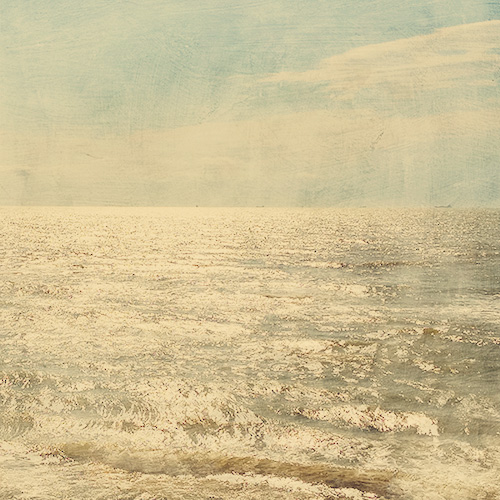
Download the free CoffeeShop Velvet Truffle action. If that download does not work, you can download Velvet Truffle here.
Want all of my favorite CoffeeShop Actions or Design Elements in one simple download AND help support this blog? Just click here for my action pack or here for a download of some of my most popular design elements, storyboards, and textures. For complete info on installing all of my actions, click here.
Saturday, December 4
The Green Machine ROCKS!
This month we are celebrating Duke's 6th birthday (yes, it is in the same month as Christmas poor dear...). He has plenty of toys and books and I was trying to figure out what to get him. I came up with something I have wanted since I was a little girl and never had because we lived on dirt roads.
 Yes, Duke is the proud owner of a Huffy Green Machine
 , the ultimate ride! It is even better than I remember and worth every penny. This is from someone who hates to spend money. :-)

Did I mention the weight limit is 180 pounds? If you haven't shopped for your husband's Christmas gift yet... ;-)
, the ultimate ride! It is even better than I remember and worth every penny. This is from someone who hates to spend money. :-)Did I mention the weight limit is 180 pounds? If you haven't shopped for your husband's Christmas gift yet... ;-)
Friday, December 3
{Friday Photo Bliss}
Inspired by the SouleMama blog's {this moment}, I am posting one image every Friday, taken that week, that really makes me happy. If you end up doing the same I would love to see your photo linked in my comments!

Subscribe to:
Posts (Atom)


