Saturday, December 31

Welcome to Pinterest: Beginners Guide


I have to confess I am always behind in the greatest, newest internet trends.  Luckily I have Amanda as a friend, because she insists I embrace new technology.  Like Pinterest.

When I first started seeing these little red "Pin It" buttons on people's blogs, I just ignored them.  But after Amanda twisted my arm (figuratively of course) and insisted I would love it, I decided to check it out.  And she is right (of course),  Pinterest is great!

Pinterest is perfect for bookmarking with a picture those sites/tutorials/inspiration pics/craft ideas/etc. that you want to go revisit when you have a free moment.   If you are like me, you bookmark a great article or picture and later can't remember why you ever bookmarked www.iloveshoelaces/19981 and never visit it again.  But Pinterest is brilliant because you can pin a link with a photo on a virtual bulletin board, and share it with others!  Or visit other people's boards for inspiration.

See a great craft idea, just pin the picture to your Craft board and you can easily find it later.  Read a great PSE editing tutorial, pin it to your PSE board.  Plus, people can follow your boards and see what you love and repin it on their boards.  Or even pin something they think you would love on your board (if you set it up that way).

You can see my boards in the image above.  I just started, so expect to see them fill up!  You can follow me at CoffeeShop.  Also, check out Amanda's Pinterest site too!

I wanted to introduce newbies to Pinterest, but please remember I am a newbie myself, so please keep that in mind when you read this tutorial.


Go visit the Pinterest website.  You have to request an invite to start using Pinterest.  I was afraid of rejection, so I went through the second option and emailed Amanda and begged her to add me.  If you have a friend who uses Pinterest they can invite you.  This is a great way to see if your "friend" really cares about you.  ;-)

Once you have an account just Login and then click on Account on the right side and you can start adding boards; like Photo Editing, Crafts,  Design, Favorite Books, etc.  You can also add new boards as you pin new links to your site.


Now how do you start pinning your favorite links?  Easy!  If the post already has a Pin It button, just click on it, select the board where you want to pin it, and if there is not a description, add one.  Click on Pin It and it is instantly on your virtual bulletin board.

But what do you do if you don't see a Pin It Button?  Easy!


Go visit Pinterest Goodies and add a little Pin It button on your browser menubar.


I read this great Editing Teenagers in PSE post at Amanda's site, and I decided to Pin It to my Photoshop board.  So I clicked on the Pin It button on my menubar.


All of the pictures on that post/website will come up, so just click on the one that you want to pin.  I clicked on the one with the before/after of the young man.


I added the pin to my Photoshop Board, and then added a brief description and clicked on Pin It.  If you want to add a new board for this pin, just click on the little upside down triangle by the Board name and scroll down until you see "Add a new Board".

Success!!!!


But how do you add a Pin It button to your own post?


Bookmark Pinterest Goodies and scroll down to "Pin It" Button for Websites.  Add the URL of the post you want pinned, and the URL of the image (if you don't know, just right click on the image in your post you want pinned and then select "copy image address" or something to that effect).

Finally, add a Description of the pin.  Then copy the html code.


Go to your html post editor (Blogger in my screenshot) and then paste the code in your post. I paste it under the image I want my readers to pin.

Easy, right!

I hope this encourages you to check out Pinterest.  It is a great way to organize your favorite links and share them with others. And thanks Amanda, you are the best!

Want all of my favorite CoffeeShop Actions or Design Elements in one simple download AND help support this blog? Just click here for my action pack or here for a download of some of my most popular design elements, storyboards, and textures.

Friday, December 30

{Friday Photo Bliss}


Inspired by the SouleMama blog's {this moment}, I am posting one image every Friday, taken that week, that really makes me happy. If you end up doing the same I would love to see your photo linked in my comments!

Want all of my favorite CoffeeShop Actions or Design Elements in one simple download AND help support this blog? Just click here for my action pack or here for a download of some of my most popular design elements, storyboards, and textures. 

Thursday, December 29

CoffeeShop Editing 101: Easy Editing with Levels

Pin It

If you are new to Photoshop or PSE, you might not be aware of the editing power of the simple Levels adjustment layer.   You can use this one editing layer to brighten, darken, or add contrast to your image; simply by adjusting the blending mode.

CoffeeShop Editing 101:  Easy Editing with Levels


1.  Open your image.  Add a levels adjustment layer and don't touch the sliders or make any adjustments.


2.  Need to brighten/lighten your image?  Just put the levels layer in Screen blending mode.


3.  Too bright?  Just adjust the opacity.


4.  Need to darken your image?  Put the level layer in Multiply mode and adjust the opacity.


5.  Want some contrast?  Put the levels layer in Soft Light and adjust the opacity.


6.  Need more contrast?  Try Overlay blending mode.

Advanced Level Editing with Layer Masks

Add more than one levels adjustment layer to brighten skin, add contrast and even burn in a vignette. You have to be comfortable with using layer masks to follow this tutorial. I have a Editing 101 Layer Mask tutorial for new Photoshop/PSE users.


1.  Brighten Skin:  Add a levels adjustment layer, put it in screen blending mode, and click on the layer mask and edit, fill with black. Use a soft white brush at 100% and paint over skin.   I put this layer at 46% opacity.

Note:  Alt-shift (Option-shift in Mac) and click on the layer mask to see a red tint where you are painting for accuracy.

2.  Add  Contrast:  Copy the Screen (Brighten) layer (layer, duplicate layer or drag that layer to the "create a new layer" icon on the bottom left of the action pane).  Then put this layer in Soft Light or Overlay blending mode.

Then click on the layer mask and Ctrl-I (Command-I in Mac) to invert it.  This adds contrast to everything but the skin. I put this layer in Overlay, 38% opacity.

3.  Add a Vignette:  Add a new levels adjustment layer in Multiple blending mode.  Then select a soft black brush at 100% opacity, click on the layer mask, and paint over the center of the image.  This will add a darkened vignette around the edges.

I hope you enjoyed this tutorial!

Want all of my favorite CoffeeShop Actions or Design Elements in one simple download AND help support this blog? Just click here for my action pack or here for a download of some of my most popular design elements, storyboards, and textures. 

Wednesday, December 28

CoffeeShop Snowy Day Action and Texture!!!

Pin It
Today I posted on my CoffeeShop Facebook page, asking readers what they wanted to see more of on my blog.  I have had a great response, and it seems that actions, tutorials, and storyboards are big on the list.  So this new year I am going to try to post at least one new action & tutorial a week, and keep on adding storyboards, digital papers, textures and design elements on top of that.  So hopefully I can keep my photographers AND digital scrapbookers happy!!!

Lara specifically requested a snow action, and I thought that was a brilliant idea.  So I googled and found this amazing tutorial and decided to write an action inspired by it.  This action

Tuesday, December 27

CoffeeShop Facebook Timeline Cover 2!


I had so much fun designing the Facebook Timeline Cover 1, I decided to post a Facebook Timeline Cover 2.  This is the maximum size you can load to Facebook.  You can also use  this as a blog/website header or even a storyboard.

Add your images using the clipping mask layers and add text to the middle piece of paper where it says "add text".  Change the background color by clicking on the Color Fill 1 layer or add your own background.  Note: I used the Pea Marsha font for this ad.


Download the free CoffeeShop Facebook Timeline Cover 2

 
Do you want to download thousands of professional CoffeeShop PSE/Photoshop actions (including exclusive ones not found anywhere for free), textures/overlays, scrapbooking papers, clip art/design elements, photo storyboards and frames, and Lightroom presets from this site in one convenient zipped file AND help support this one-woman blog?

Just click here for my CoffeeShop Mega Download Pack!

Monday, December 26

CoffeeShop Damask Fabric Digital Paper!

Pin It
I had a wonderful Christmas with my family and I will post more about it this week, but tonight I wanted to post my newest digital paper set, Damask Fabric.   I used a beautiful pattern from the Renaissance Spring set on Pixels & IceCream and added a linen texture overlay layer.  These are high resolution and can be used on websites or in print.

These papers would be beautiful on storyboards and frames, greeting cards, and blog/website backgrounds. I hope you enjoy using them!

Download the free CoffeeShop Damask Fabric Digital Paper Set.  You can also download it from MediaFire.

Want all of my favorite CoffeeShop Actions or Design Elements in one simple download AND help support this blog? Just click here for my action pack or here for a download of some of my most popular design elements, storyboards, and textures.

Friday, December 23

CoffeeShop Facebook Timeline Cover 1!!!


OK, I know I said I wasn't going to post until Monday, but I noticed the new Facebook Timelines were out, and I wanted to design a fun cover.  The CoffeeShop Facebook Timeline Cover 1 is 850 x 315 px (the maximum size) and everything is in layers so it can all be customized.  And this is not just for Facebook. You can use this template as a blog header or even a storyboard for your blog.

Add your image to the clipping mask layers (use my Group It action to make it easy!).  You can click on the color fill adjustment layers on the bottom to change the background and chevron colors, or click on the color fill layers on top to change the bunting and string colors.

You can also add a digital paper or texture as the background, or simply use a simple color.  Select the matching frame and clipping mask and Ctrl-T and move them around if you want.  Turn off the bunting and add your own design elements.  I made this cover storyboard completely adjustable, so have some fun!

And I am really really really going to take a blogging break until Monday.  I need someone to hide my computer.  :-)  I need to start cooking and baking for tomorrow.  Merry Christmas!!!!


Download the free CoffeeShop Facebook Timeline Cover 1


Do you want to download thousands of professional CoffeeShop PSE/Photoshop actions (including exclusive ones not found anywhere for free), textures/overlays, scrapbooking papers, clip art/design elements, photo storyboards and frames, and Lightroom presets from this site in one convenient zipped file AND help support this one-woman blog?

Just click here for my CoffeeShop Mega Download Pack!

Wednesday, December 21

Merry Christmas & Happy Hanukkah!

 &&

It is one of my favorite times of year.   Not because of the presents or decorations, but because we get to spend this joyous time relaxing with our friends and family.  My shopping is long finished (thank you so much Amazon), the kids have finished decorating the many trees we have around our house, and we are working on gaining our winter hibernation weight making and eating homemade Christmas cookies and bread.

I want to wish all of you Merry Christmas & Happy Hanukkah!  I am going to take the  rest of the week off from blogging, but I will be back on Monday with new tutorials, actions, and digital design elements.  May you have a blessed time with your loved ones this holiday season.


Want all of my favorite CoffeeShop Actions or Design Elements in one simple download AND help support this blog? Just click here for my action pack or here for a download of some of my most popular design elements, storyboards, and textures.

Sunday, December 18

CoffeeShop Christmas Tree Digital Paper


I created some little tree clip-art for a design I was working on, and I decided to put together some 10in by 10in digital Christmas paper.  I will also post the clip-art and layered files on a future post, I just need to get it all together.

Anyway, I hope you enjoy playing with these new digital papers, even though I posted them a little late this year.  That ribbon seen in my ad will be posted for download soon also.  I have so much to get up on my blog - including some new actions, tutorials, papers, digital design elements, you name it.  I just need time to sit down and get the posts written and the freebie uploaded.  :-)

Download the free CoffeeShop Christmas Tree Digital Paper Set.  You can also download it on MediaFire.

Want all of my favorite CoffeeShop Actions or Design Elements in one simple download AND help support this blog? Just click here for my action pack or here for a download of some of my most popular design elements, storyboards, and textures.

Saturday, December 17

CoffeeShop Tutorial: Digital Sticky Tape Kit and Tutorial

Pin It


I posted some digital sticky tape for download a week or so ago, and I had some readers ask for me to write a tutorial, so here is how I make my tape.  After you make the tape you can make a tape brush.

If you want to download the Photoshop brush, vintage paper, and the tape I made in this tutorial, the link is at the bottom of this post.  :-)


1.  Make a new document. I wanted high resolution tape, so I made mine 3000px wide by 1000px high. Then I decided it was too big and resized it to 2000px wide.  :-)


2.  Select your Rectangular Marquee Tool.


3.  Draw a rectangle.


4.  Edit, Fill with 50% gray.  Then Ctrl or Command-D to remove the selection ants.


5.  I designed a triangle brush to make the tape's serrated edges.  You can download my brush at the bottom of this post.  Make a new layer.  Adjust the brush size to taste, make sure your new blank layer is selected, and click just above the top left side of the take, then hold shift and click on the bottom of the left side.  You should have a serrated edge.


6.  Select the black area with the magic wand and then click on Layer 1.  Then press Delete.  You won't see any difference, but the left side of the tape is now serrated.


7.  Click back on Layer 2 with the black serrated marks, and Ctrl-T and flip the serrated edges and slide them over the right side of the tape.  Select the black with the magic wand and then click on Layer 1 (the tape) and press Delete.


 8.  Delete Layer 2 (the black edges) and your tape should look like this:


9.  Now add some bevel and emboss.  Go to Layer, layer style and play around with the settings.  You could use my settings in the screenshot above.


10.  You can adjust the opacity of the tape layer to taste.  I want my image to show through, so I brought it down to 35% in this example.  You could also save the tape at 100% and just lower the resolution when you add it to your project.


11.  To make masking tape, simply group a paper texture over the tape.  Make sure the tape and paper layer are set to Normal, 100% opacity.  You can download this vintage paper texture (from Lori Peterson) at the bottom of this post.


12. I love adding a vintage effect to my tape, so in this example I used a wonderful texture from the Flypaper Textures Fly Edges set.  On a side note, Jill and Paul just released a new set, Autumn Painterly, and it is gorgeous!

Group the vintage texture above the paper layer and put it in multiply blending mode and adjust the opacity to taste.


13.  If you want a transparent vintage tape, just add the vintage texture above the tape.  In this case I made the opacity of the tape layer 49% and put the vintage texture in overlay mode.


14.  If you want to add some color to your tape, group a color fill adjustment layer over the vintage layer and put it in color mode. I used hex#b7aa90 for this tutorial to give my tape an old discolored feel.


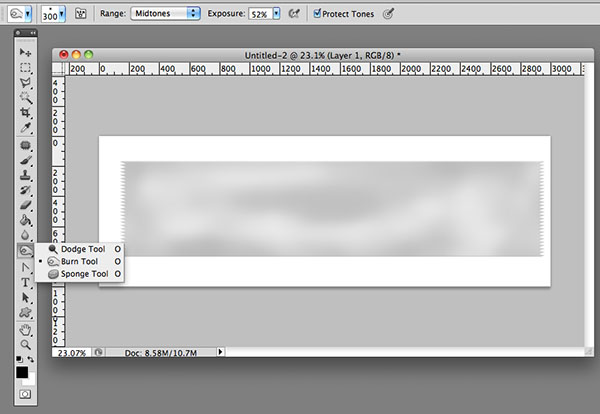
15. It is also fun to dodge/burn the tape some to add a more realistic effect.  I used the dodge tool at 37% on the midtones and the burn tool at 52% on the midtones on this tape.

After you make the tape, turn off the white background if you added one (I usually work with one so I can see the opacity of my tape) and then save the tape as a png file so the background will be transparent.  When you add the tape to your images, you can adjust the final opacity.  You can also make a tape brush to quickly add it to your images.

I hope you had fun following this tutorial. I put together a little download that contains the brush I use to make my tape, the vintage paper for the masking tape, and the tape I made for this tutorial.

Download the CoffeeShop Digital Tape Kit.  You can also download it from MediaFire.

Want all of my favorite CoffeeShop Actions or Design Elements in one simple download AND help support this blog? Just click here for my action pack or here for a download of some of my most popular design elements, storyboards, and textures (including the digital sticky tape kit!). 

Friday, December 16

{Friday Photo Bliss}

Inspired by the SouleMama blog's {this moment}, I am posting one image every Friday, taken that week, that really makes me happy. If you end up doing the same I would love to see your photo linked in my comments!

Want all of my favorite CoffeeShop Actions or Design Elements in one simple download AND help support this blog? Just click here for my action pack or here for a download of some of my most popular design elements, storyboards, and textures.

For complete info on installing all of my actions, click here.

Thursday, December 15

CoffeeShop Vintage Frames 20!

Pin It

I was going through some vintage frame scans that Lori Peterson had sent my way and I found this fun little frame.  I cleaned it up and decided to add two optional vintage texture layers that instantly age any inserted image. In the "after" seen above, I simply added the photo to the frame and did no additional editing.  This frame can be used in Photoshop and Photoshop Elements.

I made a screenshot so you could see the layers.  Group your image just above the black clipping mask (Layer 1 in the screenshot).  You can use my free Group-It action if you want.  Texture 1 and texture 2 layers instantly age your photo, but they can both be turned off (click on the little eyes on the left).  Once your image is ready to go, merge visible and save as a png if you are posting on a background that is not white, or save as a jpg.


Download the free web-sized CoffeeShop Vintage Frames 20! You can also download the frame here.  This is an image file, not an action!

Want all of my favorite CoffeeShop Actions or Design Elements in one simple download AND help support this blog? Just click here for my action pack or here for a download of some of my most popular design elements, storyboards, and textures (including this frame!).

Wednesday, December 14

Fountain Pen Love


I remember as a child my father penning letters to my grandparents in Germany using a beautiful old fountain pen.  I loved when he rolled a wooden ink blotter over the words to remove any excess ink.

For the longest time I have wanted my own fountain pen and a few weeks ago I started looking on Amazon. I ended up buying a red Lamy Safari pen. It was affordable and it makes my handwriting look so beautiful.

I also purchased the ink converter and Noodler's Black Waterproof ink.  I love the catfish graphic on the ink bottle.  Now I can fill my pen rather than have to purchase the cartridges.  And I love that the fountain pen is made in Germany and the ink is made in the USA.  And no wooden ink blogger necessary with this set-up.

Duke and Imp love using my new fountain pen, so guess what Santa is going to put in their stocking; their own Pelikano Junior Fountain Pen. Get your hands off my pen, boys!

Bring back the art of handwriting and buy some fountain pens for gifts this year.  They would make perfect stocking stuffers!

I processed the images above using the Pretty Preset's Cupcakes preset on jpgs and I used a vintage frame that was scanned in by Lori Peterson and will be posted for download on this blog this week.  :-)

Want all of my favorite CoffeeShop Actions or Design Elements in one simple download AND help support this blog? Just click here for my action pack or here for a download of some of my most popular design elements, storyboards, and textures.