


This is the second part of a two-part tutorial on editing baby portraits. Part 1 of the Baby PowderRoom Tutorial demonstrated how to adjust exposure and fix blotchy red skin. Today I am going to show you how to run CoffeeShop Baby PowderRoom 2 on your image and add an optional texture. You can still find the original Baby PowderRoom action here, and the download for my updated version is at the bottom of this post.
And Baby PowderRoom is not only for babies, you can use it on any portrait!
Tutorial Part 2: Running CoffeeShop PowderRoom 2 action on an image and adding an optional texture
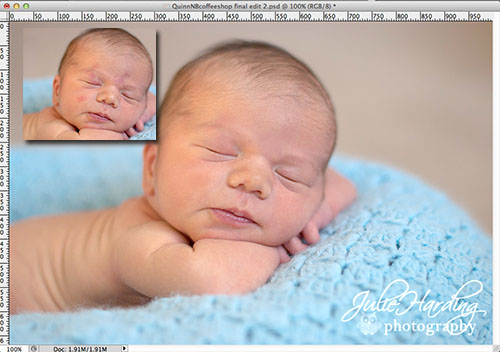
1. Here is the image from Part 1 generously donated by Julie Harding Photography. As you can see, I removed the red, blotchy skin.

2. Run the CoffeeShop Baby PowderRoom 2 action (download at the bottom of this post). The first pop-up will be Replace Color which allows you to automatically select skin for the skin-smoothing step.
Click on an area of skin to select it, and then adjust the Fuzziness slider. Your selection will be white, so make sure you are selecting the skin but not everything in the image.
If you want to add to your selection click on the eyedropper with the (+), if you want to remove selection click on the eyedropper with the (-).
Press OK.

3. Skin Smoothing: The Surface Blur adjustment will pop-up and you can adjust the setting if you wish. I just press OK and then lower the opacity of this layer when the action is finished so the skin won't be too smooth.

4. After the action runs you will have 6 new layers over your background. Your baby will probably look like a plastic doll, so time to use some layer masks and adjust opacities of layers.
If you are new to using layer masks, please go read my layer mask tutorial before using this action. This action does not magically edit your image, you will have to use layer masks!

5. Smooth the skin: This action automatically selects the skin, but sometimes you have to paint out the hair, eyes, lips and end of the nose on the Smooth the skin layer. Click on the layer mask of Smooth the skin, click "B" for brush, and use a soft black brush in normal mode at the opacity of taste to paint over anything you don't want smooth. I also lower the opacity of the Smooth the skin layer so my baby does not look like a plastic doll. Please don't go crazy on the skin smoothing.
If you want to easily see what you are painting over, Alt-click on the layer mask. The image will turn black and white as seen in the screenshot above. The white areas will be smooth, the gray areas not so smooth, and the black areas will completely block the Smooth the skin layer.

Alternatively, you can Shift-Alt click on the layer mask (this time I did it on the Lighten Skin layer) and the image will turn red. Areas that are darker red are masked (the effect on that layer will not be seen), and areas that are not so red are allowing the layer's effect to shine through. If parts of your image are not red at all, than 100% of that layer's effect is coming through.
6. Lighten Skin: If you want to slightly lighten the skin (as if lightly powdered), click "B" for brush and set your brush to Normal Mode, white, and low opacity (10-20%). Click on the black layer mask and paint over the skin. Adjust the Lighten Skin layer's opacity to taste.
7. Skin Glow: This layer adds a soft subtle dewy glow to the skin. Cick "B" for brush and set your brush to Normal Mode, white, and low opacity (20-30%). Click on the black layer mask and then paint over the skin. Adjust the Skin Glow layer's opacity to taste.
8. Eye Define: This layer enhances eyes and eyelashes. Click "B" for brush and set the brush to Normal Mode, white and 50-100% opacity. Click on the black layer mask. Paint over the eyes and eyelashes. Then adjust the Eye Define layer's opacity to taste.
9. Bright Eyes: This layer brightens the iris and whites of the eyes. Click "B" for brush and set the brush to Normal mode, white, and 10-20%. Carefully paint over the iris, avoiding the pupil, and the whites of the eyes. Then adjust the Bright Eyes layer's opacity to taste.

10. Levels layer: You can use the Levels 1 adjustment layer to make final adjustments to exposure and color. Set to RGB to adjust the highlights/midtones/shadows. And use the slider to select Red or Blue to remove/add yellow/red. The Blue setting allows you to add/remove yellow.
In this case I wanted a bit more red in this image, so I set the drop-down to Red and slightly moved up the middle (gamma) slider.

11. Add an optional texture: I wanted to add a texture to this image, and I picked a beautiful texture called Old Bench from the Chasing Dreams Summertime 2 Texture pack. Right now, use the code summer20 for 20% off the Summertime II Collection. It's good through the 6th. And check out Colleen's bundled texture specials! I love Colleen's textures.
Drop the texture on top of your image and free transform it to fit (Ctrl-T). I put the texture layer in soft light mode in this case, but you can try overlay, multiply, or even vivid light and adjust the opacity to taste.

12. Removing the texture from the baby: In this case I didn't want the texture's colors affecting my image, so I clicked on the texture layer and desaturated it (made it black and white). Then I added a layer mask, clicked to select it, and used a soft black brush at 100% opacity to paint out the baby.
I hope you enjoyed my newest retouching tutorial! I would love to see before/afters posted on my Facebook page.
Download the free Baby PowderRoom 2 action for Photoshop and PSE here.
Do you want to download my favorite CoffeeShop Actions or Design Elements in one convenient zipped file AND help support this blog? Just click here for my action pack (includes this action!) or here for a download of some of my most popular design elements, storyboards, and textures.
For complete info on installing all of my actions, click here.


