Friday, January 30

CoffeeShop Wallets Free PS/PSE Template Loading Action!


Here is a nifty little action that most of us can use to save money in this bad economy. Aren't you always annoyed that it costs more to get 4 mini (2x3) wallet-sized prints than one 4x6 printed, even though they are both printed on the same size paper? Well, here is your solution. I wrote some actions for Photoshop and Photoshop Elements that create a 4x6, 300 dpi vertical template and then prompts you to open and crop (2x3 inches) four images which are then automatically loaded into the template. I wrote one action with white borders and one without any borders. Just send your 4x6 in to be printed and cut your wallets yourself and save $$$! This is also great for scrapbookers and parents (who want to show off pictures of their kids!).

Make sure you load the proper actions. Within the zipped file there are 2 folders, one for Photoshop users (it contains one action set) and one for Photoshop Elements users. The PSE folder contains instructions on running the two CoffeeShop Wallets actions in your program (it is always more complicated in Photoshop Elements!). You MUST open a random image before starting the action or it will not run. That image will close and the action will begin. When you get a prompt, load your image, adjust the crop bars to taste (horizontally or vertically), press Enter, and the cropped image is loaded onto your template and the original one is closed without saving any changes. You do not have to do this in Photoshop, just click and run.

NOTE: I have found that sometimes PSE will crash using CoffeeShop Wallets. The way to avoid this (if you notice any issues) is to make sure to save your newly created template (before making a new one), close it, and open a random image before starting your next CoffeeShop Wallets action run. If your program crashes just open it again and start over, it doesn't hurt anything but your pride. I think this has something to do with the age and amount of memory of your computer. My computer is 5 years old, so the poor thing has trouble keeping up!


If any of you guys out there have suggestions for future loading actions like this one, post it in the comments if you don't mind. I want to make ones that are practical for you scrapbookers and photographers. I am always looking for new ideas. I am going to make a 5x7 template with four 2.5 x 3.5 traditional sized wallets next for those of you that want the big wallets!

Please go here if you need help loading actions in PS/PSE. 

Download the CoffeeShop Wallets free PS/PSE action HERE!

I have had quite a few people ask if I could turn the CoffeeShop Wallets action into templates so they don't have to use an action. I wrote this action so that I could print out four vertical wallet-sized prints on one 4x6 print. This is not the original size of the wallets we grew up with, but they are a valid size used today. So here are the templates! You can use these for vertical or horizontal wallet images (the action only loaded vertical images, but I will be writing a horizontal version soon). I included 2 different image files for the wallets (with and without borders). One is a .psd file with clipping masks which you can open in Photoshop or Photoshop Elements. If you don't know how to use clipping masks, please visit my Clipping Mask UnMasked Tutorial. The other file is a .jpg which can be opened in any photo-editing program.

Remember, these files are templates, not actions. So just open them like any other image file in your editing program.

Download the CoffeeShop Wallet Templates HERE!

Do you want to download thousands of professional CoffeeShop PSE/Photoshop actions (including exclusive ones not found anywhere for free), textures/overlays, scrapbooking papers, clip art/design elements, photo storyboards and frames, and Lightroom presets from this site in one convenient zipped file AND help support this one-woman blog?

Just click here for my CoffeeShop Mega Download Pack!

PhotoBucket Issues!

As you can see many of my images are missing. I have exceeded my PhotoBucket bandwidth allotment (too many people view my images on my blog), so I will have to get them hosted somewhere else. I will put them on Flickr or directly on Blogger, but it will take some time to change everything over. Thank you so much for your patience! Don't go with PhotoBucket if you plan on using their free account and more than a few people few your blog a day.

Oh, most of my images are hosted by Blogger, so I am not going to be completely overwhelmed uploading images. The only real issue I have is my Clipping Mask tutorial's images were accidentally deleted from my computer (OK, truth is I was cleaning my hard drive and decided I would dump them, yes I am completely stupid!!!) so I have to download them from photobucket to upload them somewhere else. I usually keep everything backed up, but sometimes I start "cleaning house" and throw away things I shouldn't!!! I do that in my real house too sometimes because I hate clutter. :-)

Rita

Monday, January 26

CoffeeShop Vivid 2 Free PS/PSE Action!

Update!!! Now I have another version of Vivid; Vivid 3. Check it out!!!


Here is the CoffeeShop Vivid 2 free action for Photoshop and Photoshop Elements! You can find the old CoffeeShop Vivid here. This action has 4 different color pop layers which include layer masks so you can remove the pop off skin or anything else if needed. It also has a very easy totally automatic vignette layer and a sharpen layer you can turn on or off. The zipped file includes the .atn action file (for every version of Photoshop, and every version of Photoshop Elements EXCEPT PSE5 in XP where there are some issues...), a .png icon file for PSE6&7, a .psd icon file for PSE4&5, and a .jpg sample of the "action in action".

Click here to download CoffeeShop Vivid 2!
Do you want to download thousands of professional CoffeeShop PSE/Photoshop actions (including exclusive ones not found anywhere for free), textures/overlays, scrapbooking papers, clip art/design elements, photo storyboards and frames, and Lightroom presets from this site in one convenient zipped file AND help support this one-woman blog?

Just click here for my CoffeeShop Mega Download Pack!

Friday, January 23

CoffeeShop Vivid 2 Preview!


One of my favorite actions is CoffeeShop Vivid . I love how it gives me 4 color pop options, because you never know which one will look good on a particular image. However, it always annoyed me that I did not include layer masks on each color pop layer. I usually find I don't want the full color pop effect on skin (especially on faces), so I add a layer mask to tone down the effect where needed. I realize Photoshop users can easily add one themselves, but Photoshop Elements users have to first download my nifty CoffeeShop Layer Mask if they want to use a layer mask. Either way, it is nice to have one already included so you can start painting away.

So now I have rewritten my classic CoffeeShop Vivid action to include layer masks on each color pop layer. I also included a automatic vignette which is completely adjustable and can also be turned off. The color pops themselves are completely the same, and it still includes the original sharpen layer and a Lighten/Darken layer. This action will not make a duplicate of your original layer and I will streamline the notes so it runs quickly.

I am doing the last minute testing, but I will be releasing this action this weekend! I have a few other things due out, so keep on checking back. My new portrait action has been tested to run in PSE5, 6, and 7 and Photoshop 7 and all versions of CS. So it is getting wrapped up and will be released very soon. You guys are going to love it.

Friday, January 16

CoffeeShop Tutorial: Making your own Simple Blog Header


When I first started blogging I was completely overwhelmed by everything, including how to start a blog and make a blog header.

Thursday, January 15

Having Trouble Downloading Actions?

Update at 7:00 PM: I received an email from Jodi at MediaFire and she said they have been doing updates which probably caused the problems, and the links seem to be working fine now. I am very impressed they got back with me so soon as I have a free account, and I am happy to hear the problem should be resolved. Now I can start working on my real post! Thanks for being so patient. Rita

-------------------------------------------------------------------------------------

OK, it has been brought to my attention that people are having some issues downloading actions and such from CoffeeShop. Everything is still available for download! I have a free account with MediaFire and it is an issue with them. I have written MediaFire, but as of now I don't know what is going on. Imagine me pulling out my hair in frustration right now. :-)

It is an interesting problem because one minute the link works, then I retest it later and it doesn't. Then it works again an hour later. At this point if you are having problems downloading something, please comment in this post (not in the post that contains the action please!) but also try again later in the day and it will probably work.

I hope this is just a problem today, but otherwise I will start uploading all of the CoffeeShop Goodies once again and provide second links. I am tired just thinking about it! If anyone has a suggestion for a dependable free place to upload files please post here in the comments.

Thank you so much for your patience. I was working on my post for today, but now I might have to work on uploading instead. Drat...

Rita

Sunday, January 11

CoffeeShop Valentine Textures!

Thank you so much for helping me choose a name for my newest portrait action. I was so entertained reading all of the great and sometimes hilarious suggestions. I obviously have very creative (and brilliant!) readers. I will be releasing that soon, so please keep an eye on my blog!


In the spirit of another holiday, I whipped up some Valentine textures. They are a bit grungy and not your typical "pretty" paper, but I think you will like them. Just open them in Photoshop, Photoshop Elements, or any program that you edit in and use them as textures, frames, or digital paper on photos, cards, or templates.

I used two free textures on these papers, Door Panel by Paul Grand also his Scratches Inverted (I love that texture!) and Painted Frame Texture by Irisb477 . They have other great free textures, so be sure to check them out and thank them for being so generous.

And thanks again for visiting my blog and leaving such great comments. I really appreciate it! I have tons of stuff on the horizon, so please keep on checking back, you never know what you might find here.


Do you want to download all of my favorite professional CoffeeShop PSE/Photoshop actions (including exclusive ones not found anywhere for free), textures, papers, clip art/design elements, storyboards, and Lightroom presets in one convenient zipped file AND help support this blog? Just click here for my CoffeeShop Mega Download Pack!

Tuesday, January 6

Help me name my newest CoffeeShop Free Action!

I need your help in naming my newest free portrait action (which is being fine-tuned as you read this). This action is your one-stop action for portraits and should be run on an unedited image. It does everything CoffeeShop PowderRoom 2 does, but includes 1) Levels adjustment layer for color/contrast correction 2) High Pass filter sharpening layer 3) Brighten layer 4) Vivid color layer filled in with a black layer mask so you just paint in vivid color where you want it 5) Soft color pop layer 6) dodge/burn layer 7) and completely automatic vignette layer. All of these layers can be turned off and on and are completely adjustable.

The image below shows all of the layers involved in this action. This action is not for the faint-hearted new user as it involves layer masks and some basic understanding of Photoshop or Photoshop Elements. You can also check out my CoffeeShop Layer Mask Tutorial . If you want to be a successful image editor, you need to learn layers! Don't be scared of them, once you pick it up they are simple.

People always ask me where to start when you are first trying to learn Photoshop Elements or CS. I always tell them the only photo-editing books I have bought are Scott Kelby's. His sense of humor might not thrill everyone, but he is an excellent teacher and his books are so easy to follow and actually fun. I still refer back to them all of the time. You can find the links to his newest Photoshop Elements and Photoshop CS4 books to the left. Check them out, they will save you so much time! I also have the link to my favorite photography book of all time, UnderStanding Exposure by Bryan Peterson. This is the book that finally helped me understand how to use my camera and not set it on the "idiot" mode. He explains exposure, aperture, and ISO and how they all work together. If you are scared to stop using the A or P mode, please read his book!

I was calling this CoffeeShop Pretty Portrait, but I am not happy with that name as it excludes males. ;-) I would love if you could leave comment with a name suggestion. Hope everyone is doing well and editing their Christmas photos!


CoffeeShop ????

Sunday, January 4

Custom Patterned Text Tutorial!

This is a tutorial on one way to create you own custom patterned text in Photoshop Elements or Photoshop. This is a first in a series of tutorials where I will show you how to make your own custom header for your blog. In this tutorial I used PSE6 (and it works in Photoshop also), but patterned text is easier to make in Photoshop, so if you are a Photoshop user please note when I break away to give you other instructions.


In this case, I had an image of a bride (processed with CoffeeShop Attic Vintage Action ), and I wanted to fill the text with a pattern created from the yellow in her flowers. This is a sample from my header.

To create the custom pattern, just select an area in your image using your marquee tool. Here I selected a yellow area of the rose that did not have much detail.
Edit, then Define Pattern. Name your pattern and press OK. Ctrl-D to remove the selection ants. Now select the text you want to use (make sure it is big enough so you can see your texture!) and type it in.
Now create a new layer on top. Photoshop Users: Please skip down until you see the Photoshop Only Tutorial...
Edit, then Fill Layer, and select Pattern and find your pattern in the pull-down menu. Press OK. Now your image and text are covered by the pattern.
Making sure the pattern layer is selected, type Ctrl-G. This will group the text with the pattern and you should see your text become filled with your pattern. At this point you can make any changes to the text (size, shape, etc.) and you can also move the pattern around (make sure that layer is selected) with the move tool to find the best placement on your text.
Here is a sample with a pattern I created using the leaves of the image.
Now you need to simplify the text (which means you will not be able to edit it as text anymore, but you can still Ctrl-T free transform it if you want). Right click on the Text layer and select "Simplify layer".
Right click on the pattern layer and select "Merge Down".
Now if you want to add a color stroke to your text, go to Edit, then Stroke Selection. Enter your stroke width, color, and location and press OK.
Now click M to get your move tool, and move the text to its best location. Then flatten the image.

Hope you guys find this tutorial useful. The next tutorial will be a step-by-step tutorial on designing your own custom blog header. If you have any questions, please post the question at my CoffeeShop Flickr Group for a resident group of experts willing to help you out!


These Instructions are for Photoshop Users ONLY!


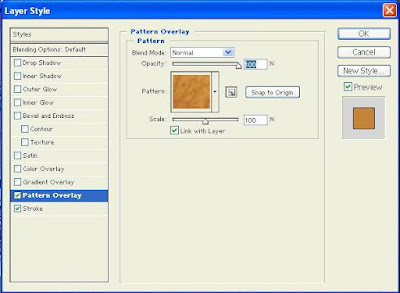
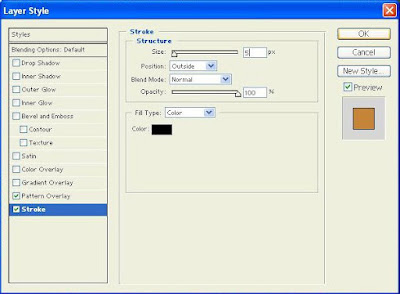
With your text layer selected, go to Layer, Pattern Overlay, Find your new pattern in the pull-down menu and press OK. Then go to Layer, Stroke. Enter the size, position, and color. Then make any adjustments to your text and flatten the image.

Thursday, January 1

CoffeeShop Honey Retro Action!


Happy 2009! 2008 was a great year for my family, and to show my appreciation for all of your nice comments and generous donations I wanted to give you a New Year's present. Here is the CoffeeShop Honey Retro action. It runs in Photoshop and Photoshop Elements, and the action does all of the work for you. After it finishes running, just turn on the edge burn layer of choice (the light burn at 50% is automatically selected) and adjust opacity of that layer to taste. Flatten your image and enjoy!

Download the free CoffeeShop Honey Retro Action!


Do you want to download thousands of professional CoffeeShop PSE/Photoshop actions (including exclusive ones not found anywhere for free), textures/overlays, scrapbooking papers, clip art/design elements, photo storyboards and frames, and Lightroom presets from this site in one convenient zipped file AND help support this one-woman blog?

Just click here for my CoffeeShop Mega Download Pack!