Saturday, May 30

CoffeeShop 1V1H Storyboard PS/PSE Action and Templates!


Here is another free CoffeeShop Storyboard PS/PSE Action and Template set! The CoffeeShop 1V1H (1 vertical 1 horizontal) Storyboard can be cropped to fit any standard frame (such as 8x10 or 11x14). Remember, if you are using Photoshop Elements you must have some random image open BEFORE starting this action. Actions won't run in PSE unless an image is open. This action leaves the layers, so you can move or resize the images, adjust the text, or even change the background color (select the background layer and fill it with the color of your choice, it is that easy!).

I also threw in two templates for those of you that don't want to mess with actions. The first is a .psd file with layers and clipping masks. Read my Clipping Mask Tutorial if you don't know how to use clipping masks, they are very easy and make sizing images to fit storyboards so easy! I also included a .jpg image if you don't want to mess with layers.

I hope you enjoy this new CoffeeShop Storyboard. Download the CoffeeShop 1V1H Storyboard PS/PSE Action and Template .

Do you want to download thousands of professional CoffeeShop PSE/Photoshop actions (including exclusive ones not found anywhere for free), textures/overlays, scrapbooking papers, clip art/design elements, photo storyboards and frames, and Lightroom presets from this site in one convenient zipped file AND help support this one-woman blog?

Just click here for my CoffeeShop Mega Download Pack!

Wednesday, May 27

CoffeeShop Selective Color PS/PSE Action!


Here is the newest free CoffeeShop action, CoffeeShop Selective Color. I already have a selective color action which just leaves the blue in the image (CoffeeShop Denim), but people have requested an action that would work on other colors. So I wrote this little action for you guys! It turns your image B&W and then opens a levels adjustment layer so that you can tweak your B&W contrast to taste. Then the action applies an automatic vignette (you can turn this off after the action runs, or change the blending mode to multiply or soft light, or even adjust its opacity). Finally the action selects your brush tool and then clicks to select the B&W layer mask. Adjust your brush's opacity and softness to taste and simply paint over areas you want color, and then flatten your image. This action also works great if you want a nice B&W conversion.

There is much "controversy" over selective color and some photographers will tell you it is outdated and overused (where they found this information I am not sure, perhaps Wikipedia under "How to be Too Cool for School, or How to Come off as a Real Professional Photographer Who Knows it All"?). ;-) I have found personally that many many people ("people" as in regular people who don't agonize every minute about aperture and film speed and lighting and eye pops and worry more about capturing a moment) out there completely love this effect and will specially request it, especially in children and wedding photography editing.

I love to use Selective Color in some of my images, such as the baby photo above, but I will be the first to tell you I never worry about what is "cool", but follow my own path which often leads through the bug and snake-infested weeds directly to a barbed-wire fence covered in prickly blackberry vines. When color film first came out I imagine everyone thought B&W was outdated too... ;-)

I always tell people photography is art and art is subjective and what is trendy today might not be tomorrow, so just have fun and create what YOU like! Now I am stepping off my soap box so that I can enjoy a nice cup of coffee while my boys nap and dream about having a cool Mom who will feed them unlimited Ding Dongs and let them drink Cherry Kool-Aid on the carpet while playing video games and cuddling with their pet boa constrictor.

Download the CoffeeShop Selective Color PS/PSE Action HERE!

Do you want to download thousands of professional CoffeeShop PSE/Photoshop actions (including exclusive ones not found anywhere for free), textures/overlays, scrapbooking papers, clip art/design elements, photo storyboards and frames, and Lightroom presets from this site in one convenient zipped file AND help support this one-woman blog?

Just click here for my CoffeeShop Mega Download Pack!

Monday, May 25

CoffeeShop Wallets - Templates! LINK FIXED!!!


I have had quite a few people ask if I could turn the CoffeeShop Wallets action into templates so they don't have to use an action. I wrote this action so that I could print out four vertical wallet-sized prints on one 4x6 print. This is not the original size of the wallets we grew up with, but they are a valid size used today. So here are the templates! You can use these for vertical or horizontal wallet images (the action only loaded vertical images, but I will be writing a horizontal version soon). I included 2 different image files for the wallets (with and without borders). One is a .psd file with clipping masks which you can open in Photoshop or Photoshop Elements. If you don't know how to use clipping masks, please visit my Clipping Mask UnMasked Tutorial. The other file is a .jpg which can be opened in any photo-editing program.

Remember, these files are templates, not actions. So just open them like any other image file in your editing program.

Download the CoffeeShop Wallet Templates HERE!

Do you want to download my favorite CoffeeShop PSE/Photoshop Actions and Lightroom Presets or Design Elements in one convenient zipped file AND help support this blog? Just click here for my action pack or here for a download of some of my most popular design elements, storyboards, and textures.

For complete info on installing all of my actions, click here.

Thursday, May 21

CoffeeShop Color Tints PS/PSE Action!


You might have noticed that I haven't posted much the last week. It has been really hectic here (like always!) and I decided we needed a mini holiday so we went to Galveston Island. Galveston was hit really hard by Hurricane Ike last fall, and this was our first visit post-hurricane. Do you know that Galveston at one time was a bigger and more famous city that New York? And that a hurricane in the early 1900's almost destroyed it and killed thousands of people (one of the world's biggest natural disasters)? Galveston Island has a fascinating history and I love to visit.

The weather was perfect and the beach was very clean and lovely (everything was washed out to sea ;-) ) and the island looked remarkable considering what we saw on the news after the hurricane. However, the majority of the lovely old live oaks lining Broadway St. and in the Strand and neighborhoods have not a leaf on them and apparently are dead. We couldn't figure out why until we realized that they had been covered with salt water for some time which seems to have killed them. It was quite sad, not to mention that one of our favorite restaurants in the Strand (the WaterWall, I started going there in middle school, had a killer buffalo burger) is closed, and the FlagShip Hotel that hangs over the ocean is almost destroyed and boarded up. In the photo above you can see the water line on one of the Strand buildings. But it is just incredible how much has been rebuilt. I am so glad I went back and we plan on helping the Galveston economy by visiting more often. :-) Did I mention that Imp and Duke LOVED the ocean?


Here is the newest CoffeeShop action, CoffeeShop Color Tints. It has several tints to choose from (vintage blue and rosy are my favorite), and each layer opacity can be adjusted, and there are built-in layer masks. I even added a contrast boost layer. How many times can I type "layer" in a sentence? If you are not overwhelmed by the name of this action, just remember I spent a few days with a 4 and a 2 year old at the beach and the CoffeeShop Creative Naming Center of my brain is inactive at this time! I need a vacation from my vacation. ;-)


Download the CoffeeShop Color Tints PS/PSE Action HERE!

Do you want to download thousands of professional CoffeeShop PSE/Photoshop actions (including exclusive ones not found anywhere for free), textures/overlays, scrapbooking papers, clip art/design elements, photo storyboards and frames, and Lightroom presets from this site in one convenient zipped file AND help support this one-woman blog?

Just click here for my CoffeeShop Mega Download Pack!

Friday, May 15

CoffeeShop 20x10 Storyboard PS/PSE Action and Template!


Here is another free CoffeeShop Storyboard action and template! This one is 20x10, 300 dpi, and the action builds the template and crops and loads your images for you. There is also optional adjustable text layers. Plus this action does not flatten the final storyboard so you can do a last minute adjustment of your images or text if you wish. If you are using Photoshop Elements, you must have some random image open BEFORE starting this action or it won't run! Also, you might have to restart your PSE program after loading the action so that it will crop the images correctly. If the images are coming out wonky, just restart and then it should be fine. I also included a .psd template with clipping masks for those of you that prefer to not use an action. Please read my clipping mask tutorial if you haven't already, clipping masks make it easy and fun to load storyboards.

Download the free CoffeeShop 20by10, 5 pics Storyboard PS/PSE Action and Template HERE!

Do you want to download thousands of professional CoffeeShop PSE/Photoshop actions (including exclusive ones not found anywhere for free), textures/overlays, scrapbooking papers, clip art/design elements, photo storyboards and frames, and Lightroom presets from this site in one convenient zipped file AND help support this one-woman blog?

Just click here for my CoffeeShop Mega Download Pack!

Tuesday, May 12

CoffeeShop Glamour Glow PS/PSE Action!


I was playing around with different skin softening techniques and I hit upon a method that does a nice glamour skin softening with a soft glow. It is completely different than the skin softening in CoffeeShop PowderRoom and should not be used as a replacement for that action.

I personally feel this action is better for portraits of women where you are interested in a more glamorous skin treatment. However, if you use this modestly it is really nice in most portraits (even children and babies) as it makes their skin glow. This action also has the classic Eye Define and also a slightly different method to brighten eyes using the screen blending mode.

In this action you use a soft white low opacity brush in each layer mask to get results. I usually go overboard a bit then dial down the opacity of that layer. It is important to not overdo eye "pops" and skin softening. You usually don't want your portraits to look like space aliens. ;-)
A few more notes. You can use the Bright Eyes layer to brighten teeth, eye whites, hair, and anywhere in your image you need a bit of brightness. The Eye Define layer is great to "define" parts of your image that need some extra sharpening. It is great on urban landscapes (rust and peeling paint) or nature (tree trunks)!

I would be interested to hear your comments on which skin softening is your favorite! Remember, this action does not replace PowderRoom or Perfect Portrait, but is just an additional method for certain situations where you not only want soft smooth skin, but a subtle glow. Heck, download them all, they are FREE!

Download the free CoffeeShop Glamour Glow PS/PSE Action HERE!

Do you want to download thousands of professional CoffeeShop PSE/Photoshop actions (including exclusive ones not found anywhere for free), textures/overlays, scrapbooking papers, clip art/design elements, photo storyboards and frames, and Lightroom presets from this site in one convenient zipped file AND help support this one-woman blog?

Just click here for my CoffeeShop Mega Download Pack!

Sunday, May 10

Clipping Masks UNMASKED and free CoffeeShop Storyboard Templates!

I love writing and using storyboard actions because they are fast, easily edited, and don't take much room on my hard drive. However, there are times that you just want a storyboard template image file so that you don't have to worry about running an action. So for this reason I will try to make actual .psd templates for all of my storyboards so you can skip the action if you want! To use these templates it is helpful to understand clipping masks so your images will fit perfectly. Here is a quick tutorial on using them, and at the end of the tutorial you will find the links to download two CoffeeShop Storyboard templates.

BTW, I also wrote an action called CoffeeShop Group It, that will automatically load your images in storyboards with clipping masks.

Open the CoffeeShop Template and your image.

Friday, May 8

CoffeeShop Pink Glow PS/PSE Action!

Click on the image to see it larger!
Happy Mother's Day to all of the Moms out there! In celebration I decided to whip up a new pink action, CoffeeShop Pink Glow. This action is completely adjustable and you can even add a haze. There is also a B&W layer just over the background. Turn this on for a pink-tinted B&W image. I hope you enjoy it! I was going to post this on Sunday, but I decided to get it finished early so that I could take a small break this weekend and just hang out with the family. I hope everyone has a great weekend and thanks again for your incredibly nice comments and generous donations!

Download the free CoffeeShop Pink Glow PS/PSE Action HERE!

Do you want to download thousands of professional CoffeeShop PSE/Photoshop actions (including exclusive ones not found anywhere for free), textures/overlays, scrapbooking papers, clip art/design elements, photo storyboards and frames, and Lightroom presets from this site in one convenient zipped file AND help support this one-woman blog?

Just click here for my CoffeeShop Mega Download Pack!

Wednesday, May 6

CoffeeShop CrossProcessing Free PS/PSE Action!


I have had quite a few requests for a cross processing action that works in both Photoshop and Photoshop Elements. There are many great tutorials out there for the cross processing effect, but unfortunately most of them involve using the curves feature that is not found in Photoshop Elements. However, I can write an action in Photoshop using those curve settings and it will run perfectly fine in Photoshop Elements.

I wrote this action to contain three of the popular cross processing techniques out there. You can select the one you like and adjust the layer opacity to taste, and even mask out the effect where needed. There is also a contrast boost layer and yellow color tint layer which you can turn on and customize by adjusting the layer opacity.


Download the free CoffeeShop CrossProcessing PS/PSE Action HERE!

Do you want to download thousands of professional CoffeeShop PSE/Photoshop actions (including exclusive ones not found anywhere for free), textures/overlays, scrapbooking papers, clip art/design elements, photo storyboards and frames, and Lightroom presets from this site in one convenient zipped file AND help support this one-woman blog?

Just click here for my CoffeeShop Mega Download Pack!

Friday, May 1

CoffeeShop Creamy Chocolate B&W "UnWrapped" Tutorial!

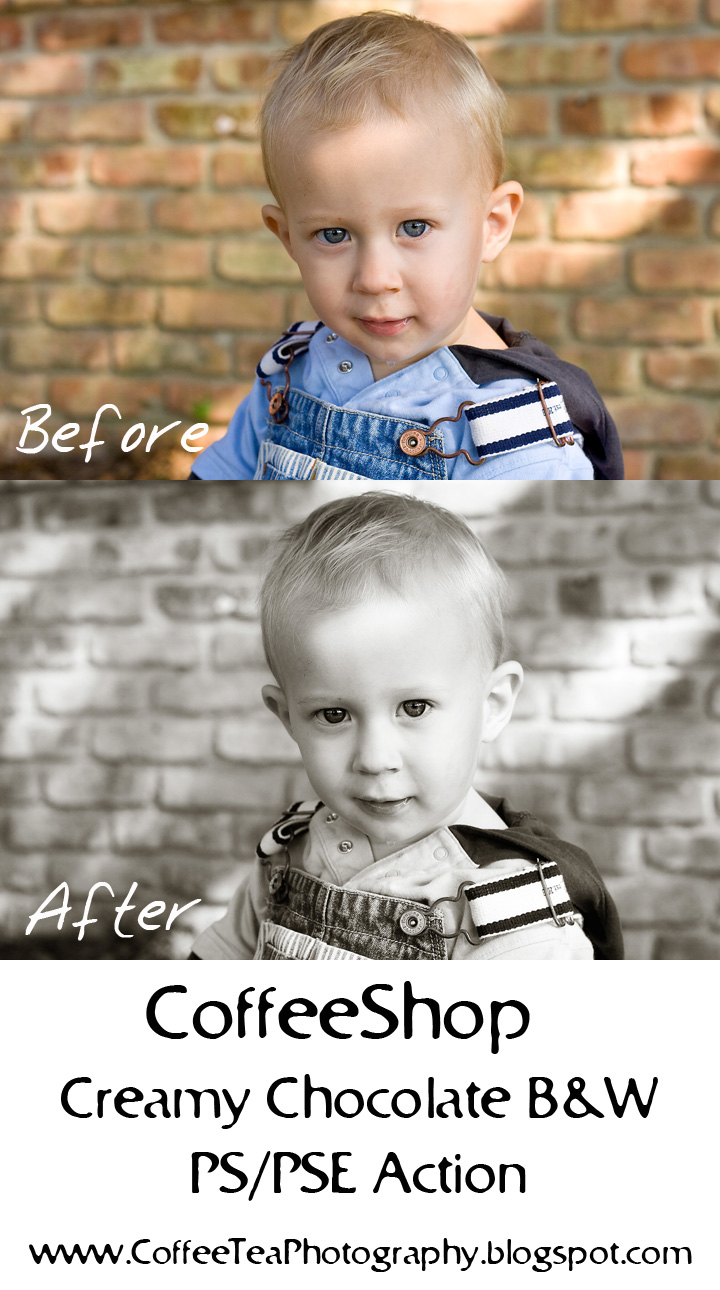
Here is the step-by-step tutorial on how I wrote the CoffeeShop Creamy Chocolate B&W Action.


This tutorial works in both Photoshop and Photoshop Elements.

1. If you have Photoshop, then add a curves adjustment layer with a slight S-curve to adjust contrast, then flatten your image.


2. Lighten Layer: I then added a Levels adjustment layer and changed the numbers under the curve to 5, 1.14, 245 to brighten the image a bit more and put the opacity of this layer at 50%.


3. Creamy Layer: Ctrl-J (copy) the background. Filter, Other, High Pass (25). Ctrl-I to invert the layer, put layer in soft light blending mode and adjust opacity to 60%. Add layer mask to mask out eyes or anything else you want sharp.


4. Chocolate Layer: Foreground color dark brown hex#492b05, Background color light brown hex#fdf4e6 . Gradient Map adjustment layer with these colors, soft light blending mode, 70% opacity.


5. B&W Layer: Black to white Gradient Map adjustment layer to turn the image B&W, put this UNDER the Chocolate layer.


6. Drag Lighten layer just above the Background. The order of layers should be Background, Lighten, Creamy, B&W, and Chocolate.


These colors and opacity percentages are only suggestions and should be adjusted for each image. Turn off Creamy layer if you don't want to use it. Change the Chocolate layer to normal blending mode for a cool vintage look. Play around and get your own distinct look.

Hope you guys enjoyed this little tutorial. I am going to start writing up all of my actions so keep on visiting if you want to see "CoffeeShop UnWrapped"! Hope you all had a great weekend and thank you once again for visiting CoffeeShop!!!

CoffeeShop Storyboard 1V + 2S PS/PSE Action!


I promised you more CoffeeShop Storyboards, so here is another one! It is called CoffeeShop 1V+2S because it has 1 vertical and 2 square images. The downloaded zipped file contains an action for Photoshop and an action for Photoshop Elements. When you run the Photoshop Elements action, make sure to have a random image open BEFORE starting the action. The image will close and your template will be built.

You can download the CoffeeShop Storyboard 1V + 2S PS/PSE Action HERE!

If you want to download the actual template rather than the action, then please click HERE!

 And to see a tutorial on using clipping masks with this templates, please visit HERE.

Do you want to download thousands of professional CoffeeShop PSE/Photoshop actions (including exclusive ones not found anywhere for free), textures/overlays, scrapbooking papers, clip art/design elements, photo storyboards and frames, and Lightroom presets from this site in one convenient zipped file AND help support this one-woman blog?

Just click here for my CoffeeShop Mega Download Pack!