Love CoffeeShop Freebies?

Image and video hosting by TinyPic
Hi! My name is Rita and I am the blogger behind CoffeeShop and a stay-at-home, home-schooling Mom to two naughty but adorable little boys (Duke is 7 and Imp is 4), wife to my high school sweetheart, and passionate about all things photography.

If you are visiting for the first time, welcome! Please read all about my CoffeeShop blog here. Everything on my blog is 100% free!

If you love using my free CoffeeShop creations and would like to make a donation to Rita the self-professed photo-editing photography geek of CoffeeShop, please follow this link! This blog is possible because of your generous support.

Search the CoffeeShop for all of my free goodies!!!

Custom Search

CoffeeShop Wallets Free PS/PSE Template Loading Action!

>> Friday, January 30, 2009


♥ Read more!

PhotoBucket Issues!

As you can see many of my images are missing. I have exceeded my PhotoBucket bandwidth allotment (too many people view my images on my blog), so I will have to get them hosted somewhere else. I will put them on Flickr or directly on Blogger, but it will take some time to change everything over. Thank you so much for your patience! Don't go with PhotoBucket if you plan on using their free account and more than a few people few your blog a day.

Oh, most of my images are hosted by Blogger, so I am not going to be completely overwhelmed uploading images. The only real issue I have is my Clipping Mask tutorial's images were accidentally deleted from my computer (OK, truth is I was cleaning my hard drive and decided I would dump them, yes I am completely stupid!!!) so I have to download them from photobucket to upload them somewhere else. I usually keep everything backed up, but sometimes I start "cleaning house" and throw away things I shouldn't!!! I do that in my real house too sometimes because I hate clutter. :-)

Rita


♥ Read more!

CoffeeShop Vivid 2 Free PS/PSE Action!

>> Monday, January 26, 2009


Here is the CoffeeShop Vivid 2 free action for Photoshop and Photoshop Elements! You can find the old CoffeeShop Vivid here. This action has 4 different color pop layers which include layer masks so you can remove the pop off skin or anything else if needed. It also has a very easy totally automatic vignette layer and a sharpen layer you can turn on or off. The zipped file includes the .atn action file (for every version of Photoshop, and every version of Photoshop Elements EXCEPT PSE5 in XP where there are some issues...), a .png icon file for PSE6&7, a .psd icon file for PSE4&5, and a .jpg sample of the "action in action".

Want all of my favorite CoffeeShop Actions or Design Elements in one simple download AND help support this blog? Just click here for my action pack or here for a download of some of my most popular design elements, storyboards, and textures. For complete info on installing all of my actions, click here.


♥ Read more!

CoffeeShop Vivid 2 Preview!

>> Friday, January 23, 2009


One of my favorite actions is CoffeeShop Vivid . I love how it gives me 4 color pop options, because you never know which one will look good on a particular image. However, it always annoyed me that I did not include layer masks on each color pop layer. I usually find I don't want the full color pop effect on skin (especially on faces), so I add a layer mask to tone down the effect where needed. I realize Photoshop users can easily add one themselves, but Photoshop Elements users have to first download my nifty CoffeeShop Layer Mask if they want to use a layer mask. Either way, it is nice to have one already included so you can start painting away.

So now I have rewritten my classic CoffeeShop Vivid action to include layer masks on each color pop layer. I also included a automatic vignette which is completely adjustable and can also be turned off. The color pops themselves are completely the same, and it still includes the original sharpen layer and a Lighten/Darken layer. This action will not make a duplicate of your original layer and I will streamline the notes so it runs quickly.

I am doing the last minute testing, but I will be releasing this action this weekend! I have a few other things due out, so keep on checking back. My new portrait action has been tested to run in PSE5, 6, and 7 and Photoshop 7 and all versions of CS. So it is getting wrapped up and will be released very soon. You guys are going to love it.


♥ Read more!

Love Natural Light Photography? Buy a Nifty Fifty!

>> Saturday, January 17, 2009

I am a huge fan of natural light photography and have never even purchased a flash. I will use my on-camera flash in a pinch (only if completely desperate!), but haven't had the need to buy a "real" flash. So how do I take photos inside of my kids when it is dark and dreary?


Here is the Nikon Version:


I bought the famous Nifty Fifty lens (50mm, f1.8) for my old Canon Rebel Digital XT. Believe the hype, it is less than $80 and if you shoot with it wide open you will be amazed how little light you need. I use mine outdoors for great bokeh (those gorgeous out-of-focus backgrounds that look stunning in any image, see my header for an example of bokeh) or inside without a flash. I found that my images inside look better if I don't use my on-camera flash and just turn up my ISO as high as needed (I even shoot at 1600), use a wide aperture (I even shoot at f1.8 with great results) and then remove any noise later with the free version of Noiseware .

No more red-eye, deer-in-the-headlights, shiny skin, black backgrounds, washed out faces and just gorgeous portraits of my little guys inside. Plus the lens becomes 80 mm when on my camera due to the Canon Rebel's 1.6 digital conversion which is an ideal portrait lens and I use it all of the time in my photoshoots. People have said this lens is so light and cheaply made, but I have had no issues with it at all. Just don't throw it against a brick wall and you will be fine. :-)

My other favorite lens that I usually keep on my camera 75% of the time (it is my walk-about lens) is the Canon 28-135mm, f3.5-5.6. It has Image Stabilizer so you can use it in low light quite well and the wide angle to telephoto range is perfect for almost any type of photography. I love this one for photographing children as I can do close-up work, but also capture them as they are running away! It is also amazing for landscapes and basically anything you want to photograph. I seriously love this lens. It has been with me even before I went digital (maybe 6-7 years) and has made several treks to Big Bend National Park, Utah's National Parks, Vegas, Germany, Florida, and the list goes on and it still works flawlessly. It has even been dropped two times! Yes, I am rough on my equipment. ;-)


I also have a kit lens (I NEVER use it) and the Canon 70-200 mm, f4/L which is a professional lens, bullet proof, affordable, and takes stunning images. However, it is pretty big so I use it, but not as often as I would like.


Oh, I am a huge lover of Canon cameras (since my old Canon AE-1). People ask me why I only use a Canon. The reason is quite simple, all of my lenses are Canon so there is no way I can afford to change at this point! I know there are other great cameras out there, but I am already commited and have been very happy with all of my Canon purchases. If you need to get an affordable SLR camera (and everyone needs one!), check out the Canon XSi.


Wow, I just found you can get the Canon 40D (one step up) with my favorite lens! The price listed below is the 40D camera body AND the 28-135mm lens I posted above. This is cheaper than getting the Canon XSi and the lens together. I am shopping for a new camera body (my old XT has been through everything and has a cracked body, but the darn thing still works after almost 20,000 images) and I will have to investigate this camera. My sis would love to have a 28-135mm, maybe we can work out a deal. :-)


And make sure to read Bryan Peterson's Book so you will know how to use it. This is one of the best photography book out there. If you shoot on automatic mode all of the time you don't need a SLR!


♥ Read more!

CoffeeShop Tutorial: Making your own Simple Blog Header

>> Friday, January 16, 2009


When I first started blogging I was completely overwhelmed by everything, including how to start a blog and make a blog header.


♥ Read more!

Having Trouble Downloading Actions?

>> Thursday, January 15, 2009

Update at 7:00 PM: I received an email from Jodi at MediaFire and she said they have been doing updates which probably caused the problems, and the links seem to be working fine now. I am very impressed they got back with me so soon as I have a free account, and I am happy to hear the problem should be resolved. Now I can start working on my real post! Thanks for being so patient. Rita

-------------------------------------------------------------------------------------

OK, it has been brought to my attention that people are having some issues downloading actions and such from CoffeeShop. Everything is still available for download! I have a free account with MediaFire and it is an issue with them. I have written MediaFire, but as of now I don't know what is going on. Imagine me pulling out my hair in frustration right now. :-)

It is an interesting problem because one minute the link works, then I retest it later and it doesn't. Then it works again an hour later. At this point if you are having problems downloading something, please comment in this post (not in the post that contains the action please!) but also try again later in the day and it will probably work.

I hope this is just a problem today, but otherwise I will start uploading all of the CoffeeShop Goodies once again and provide second links. I am tired just thinking about it! If anyone has a suggestion for a dependable free place to upload files please post here in the comments.

Thank you so much for your patience. I was working on my post for today, but now I might have to work on uploading instead. Drat...

Rita


♥ Read more!

CoffeeShop Valentine Textures!

>> Sunday, January 11, 2009

Thank you so much for helping me choose a name for my newest portrait action. I was so entertained reading all of the great and sometimes hilarious suggestions. I obviously have very creative (and brilliant!) readers. I will be releasing that soon, so please keep an eye on my blog!

I have an amazing contributor who it trying to help make my life easier. If you need help with downloading and unzipping CoffeeShop actions and images, please watch Gil's great video here . And if you live or are visiting Canada, check out his Night Sky Tours !


In the spirit of another holiday, I whipped up some Valentine textures. They are a bit grungy and not your typical "pretty" paper, but I think you will like them. Just open them in Photoshop, Photoshop Elements, or any program that you edit in and use them as textures, frames, or digital paper on photos, cards, or templates.

I used two free textures on these papers, Door Panel by Paul Grand also his Scratches Inverted (I love that texture!) and Painted Frame Texture by Irisb477 . They have other great free textures, so be sure to check them out and thank them for being so generous.

And thanks again for visiting my blog and leaving such great comments. I really appreciate it! I have tons of stuff on the horizon, so please keep on checking back, you never know what you might find here! And feel free to email suggestions of things you would like to see on my blog to coffeephotolove@yahoo.com. And be sure to visit my CoffeeShop Flickr Group to post your images edited with my free stuff, ask questions, find out the scoop of what I am currently working on, or to just say hi.


♥ Read more!

Help me name my newest CoffeeShop Free Action!

>> Tuesday, January 6, 2009

I need your help in naming my newest free portrait action (which is being fine-tuned as you read this). This action is your one-stop action for portraits and should be run on an unedited image. It does everything CoffeeShop PowderRoom 2 does, but includes 1) Levels adjustment layer for color/contrast correction 2) High Pass filter sharpening layer 3) Brighten layer 4) Vivid color layer filled in with a black layer mask so you just paint in vivid color where you want it 5) Soft color pop layer 6) dodge/burn layer 7) and completely automatic vignette layer. All of these layers can be turned off and on and are completely adjustable.

The image below shows all of the layers involved in this action. This action is not for the faint-hearted new user as it involves layer masks and some basic understanding of Photoshop or Photoshop Elements. You can also check out my CoffeeShop Layer Mask Tutorial . If you want to be a successful image editor, you need to learn layers! Don't be scared of them, once you pick it up they are simple.

People always ask me where to start when you are first trying to learn Photoshop Elements or CS. I always tell them the only photo-editing books I have bought are Scott Kelby's. His sense of humor might not thrill everyone, but he is an excellent teacher and his books are so easy to follow and actually fun. I still refer back to them all of the time. You can find the links to his newest Photoshop Elements and Photoshop CS4 books to the left. Check them out, they will save you so much time! I also have the link to my favorite photography book of all time, UnderStanding Exposure by Bryan Peterson. This is the book that finally helped me understand how to use my camera and not set it on the "idiot" mode. He explains exposure, aperture, and ISO and how they all work together. If you are scared to stop using the A or P mode, please read his book!

I was calling this CoffeeShop Pretty Portrait, but I am not happy with that name as it excludes males. ;-) I would love if you could leave comment with a name suggestion. Hope everyone is doing well and editing their Christmas photos!


CoffeeShop ????


♥ Read more!

Custom Patterned Text Tutorial!

>> Sunday, January 4, 2009

This is a tutorial on one way to create you own custom patterned text in Photoshop Elements or Photoshop. This is a first in a series of tutorials where I will show you how to make your own custom header for your blog. In this tutorial I used PSE6 (and it works in Photoshop also), but patterned text is easier to make in Photoshop, so if you are a Photoshop user please note when I break away to give you other instructions.


In this case, I had an image of a bride (processed with CoffeeShop Attic Vintage Action ), and I wanted to fill the text with a pattern created from the yellow in her flowers. This is a sample from my header.

To create the custom pattern, just select an area in your image using your marquee tool. Here I selected a yellow area of the rose that did not have much detail.
Edit, then Define Pattern. Name your pattern and press OK. Ctrl-D to remove the selection ants. Now select the text you want to use (make sure it is big enough so you can see your texture!) and type it in.
Now create a new layer on top. Photoshop Users: Please skip down until you see the Photoshop Only Tutorial...
Edit, then Fill Layer, and select Pattern and find your pattern in the pull-down menu. Press OK. Now your image and text are covered by the pattern.
Making sure the pattern layer is selected, type Ctrl-G. This will group the text with the pattern and you should see your text become filled with your pattern. At this point you can make any changes to the text (size, shape, etc.) and you can also move the pattern around (make sure that layer is selected) with the move tool to find the best placement on your text.
Here is a sample with a pattern I created using the leaves of the image.
Now you need to simplify the text (which means you will not be able to edit it as text anymore, but you can still Ctrl-T free transform it if you want). Right click on the Text layer and select "Simplify layer".
Right click on the pattern layer and select "Merge Down".
Now if you want to add a color stroke to your text, go to Edit, then Stroke Selection. Enter your stroke width, color, and location and press OK.
Now click M to get your move tool, and move the text to its best location. Then flatten the image.

Hope you guys find this tutorial useful. The next tutorial will be a step-by-step tutorial on designing your own custom blog header. If you have any questions, please post the question at my CoffeeShop Flickr Group for a resident group of experts willing to help you out!


These Instructions are for Photoshop Users ONLY!


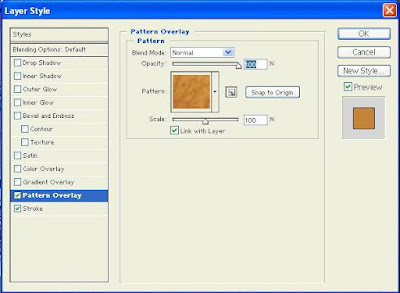
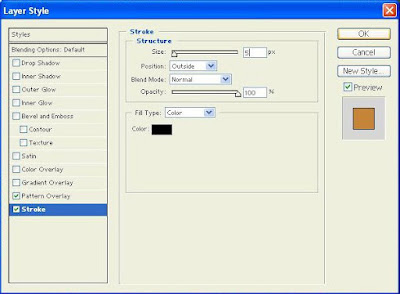
With your text layer selected, go to Layer, Pattern Overlay, Find your new pattern in the pull-down menu and press OK. Then go to Layer, Stroke. Enter the size, position, and color. Then make any adjustments to your text and flatten the image.


♥ Read more!

CoffeeShop Honey Retro Action!

>> Thursday, January 1, 2009

Click on the image below to download the free action or click HERE!


Happy 2009! 2008 was a great year for my family, and to show my appreciation for all of your nice comments and generous donations I wanted to give you a New Year's present. Here is the CoffeeShop Honey Retro action. It runs in Photoshop and Photoshop Elements, and the action does all of the work for you. After it finishes running, just turn on the edge burn layer of choice (the light burn at 50% is automatically selected) and adjust opacity of that layer to taste. Flatten your image and enjoy!

Want all of my favorite CoffeeShop Actions or Design Elements in one simple download AND help support this blog? Just click here for my action pack or here for a download of some of my most popular design elements, storyboards, and textures. For complete info on installing all of my actions, click here.


♥ Read more!