


I want to wish you a Happy New Year!!!
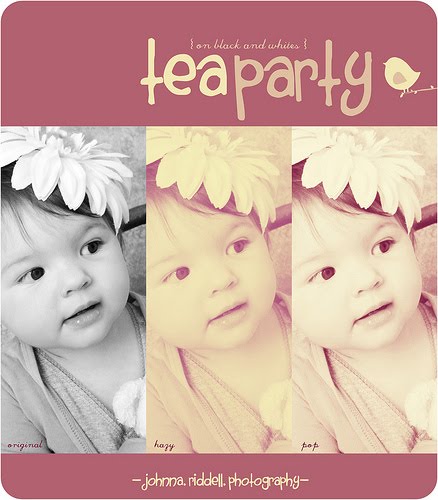
I am excited and honored to be presenting another one of Johnna's editing techniques today. If you loved Johnna's Memories of Sunshine, you can now enjoy Johnna's Tea Party step-by-step tutorial and action. As before, the images above and the editing techniques are 100% Johnna's, I just put together the action. I am thrilled that Johnna is letting me post this on my blog.

For simplicity, I made the action flatten all of the layers so you only have to adjust two layers, Johnna's Tea Party Hazy and/or Johnna's Tea Party with Contrast Boost, as seen in the layer pane image above. Simply turn on either or both layers and adjust the opacity to taste. You can have an extremely subtle or dramatic effect. I played around with both layer's opacity in the rose images below. You can also use 100% of the Hazy layer or 100% of the Boost layer.

You can use this action on color or black and white images. You can also run it twice if you want (it automatically flattens your image before running the second time). If you want to see what the action is doing so quickly, I posted Johnna's step-by-step tutorial below.
Download the free Johnna's Tea Party PS/PSE Action HERE!
Johnna's Tea Party Action Unwrapped: Step-by-Step Tutorial!
If you want to see what is happening in the action or want to learn more photo-editing techniques, here are the detailed editing steps as written by Johnna on Flickr.
1) Layer, Adjustment, Hue and Saturation. Lower the Saturation to -21
2) Layer, New Fill Layer, Solid Color, Raspberry (530d24) on Screen Blending mode at 100%
3)Layer, New Fill Layer, Solid Color, Dark Navy (080638) on Exclusion Blending Mode at 100%
4)Layer, New Fill Layer, Solid Color, Butter (f6e7a9) on Multiply Blending Mode at 100%
5)Layer, New Fill Layer, Solid Color, Salmon Pink (d88792) on Soft Light Blending Mode at 100%
6)Layer, New Adjustment Layer, Levels (choose BLUES from pulldown menu), Output Levels 52 and 224
7)Layer, Adjustment Layer, Brightness and Contrast, Contrast +45
8)Layer, Adjustment, Hue and Saturation. Lower the Saturation to -18
9)Layer, New Fill Layer, Solid Color, Cream (f4ecd4) on Soft Light Blending Mode at 100%
That's the steps for Hazy Tea Party, to make it Pop there is just one more step
10) Duplicate Background Layer, move to the TOP of ALL the layers, set to Soft Light Blending Mode

Do you want to download thousands of professional CoffeeShop PSE/Photoshop actions (including exclusive ones not found anywhere for free), textures/overlays, scrapbooking papers, clip art/design elements, photo storyboards and frames, and Lightroom presets from this site in one convenient zipped file AND help support this one-woman blog?
Just click here for my CoffeeShop Mega Download Pack!


